 PGari Glowee: Mac brightness with window spotlight
Dim inactive windows on a Mac without closing a single one
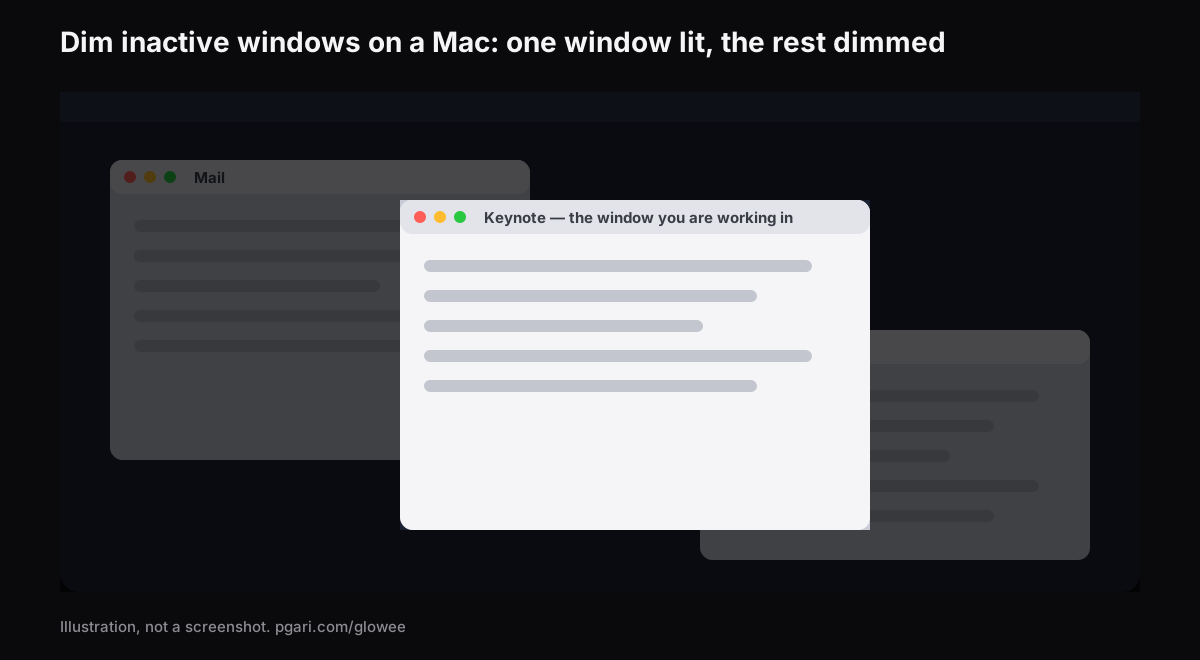
Short answer: Two apps do this, and macOS does not. Apple's own settings lists — Desktop & Dock, and Accessibility → Display — contain no option that turns down the windows behind the one you are using; the only dimming entry anywhere in them sets a style for desktop widgets. What Apple offers instead moves windows out of the way: full screen, Stage Manager, or Option-Command-H to hide every other app. To dim inactive windows on a Mac and leave them exactly where they are, you need software. HazeOver, which bills itself as a Distraction Dimmer, "automatically highlights the front window by dimming background windows" and gives you dials for how. PGari Glowee does it from a single menu entry called Spotlight — Off, Soft or Strong, thrown with ⌃ ⌥ ⌘ S, on every Mac screen, and visible to anyone you are sharing with.
The search covers two different complaints
People arrive here from two opposite directions, and the fixes have nothing in common.
The first is a crowded screen: too many windows, all of them lit equally, and no visual clue as to which one the keyboard is typing into. That is the rest of this page.
The second is a Mac that goes dim on its own after a minute of silence, or the moment it comes off the mains — a familiar one if your working day includes an outage. That one is three settings, and it is covered near the bottom.
Where macOS stops: it moves windows, it does not dim them
Everything Apple documents for this problem works by displacement.
- Full screen. Green button, top-left corner of the window, or Control-Command-F in apps that support it. Apple's phrasing is that "an app fills the entire screen — so you can take advantage of every inch of the screen and work without desktop distractions."
- Stage Manager. Meant to "keep the app you're working with front and centre, and your desktop clutter-free," with your recent apps lined up on the left of the screen and the current one in the centre. System Settings → Desktop & Dock → Desktop & Stage Manager, or from Control Centre.
- Hiding the rest. Apple's shortcut list puts it as: "To view the front app but hide all other apps, press Option-Command-H."
Read the full option lists for Desktop & Dock and for Accessibility → Display and there is nothing for background windows. Accessibility offers Invert colours, Increase contrast, Reduce transparency, Differentiate without colour, window title icons, toolbar button shapes and a display contrast slider. Useful things, none of them this.
Displacement is the right answer when one window is genuinely all you need. It is the wrong answer when the others have to stay visible — the brief you are writing from, the client's document, the terminal under the editor, the call window you glance at. Dimming leaves the layout untouched and simply turns the unused parts down.
The apps that dim inactive windows on a Mac
HazeOver, the one people search by name
HazeOver has carried this category for years, and its own description is the plainest one available: it "automatically highlights the front window by dimming background windows." Its site lists what you can set:
- Dimming intensity and animation speed, "whether it's a soft shade to guide your attention or a bold dark background for total immersion"
- A keyboard shortcut for the shading, and a gesture for its intensity
- A separate dimming setting for the Dark appearance and for the Light one
- The Fn key, held to drop the dimming momentarily while you drag between apps
- Automation through the Shortcuts app, Focus filters and AppleScript
- Across screens: "See which screen is active, or highlight windows on each monitor"
- The desktop uncovers itself automatically when you use it
It also pitches two things that matter to anyone working late: lowering interface brightness at night "without sacrificing the legibility or color accuracy of the front window," and reducing eye strain and glare. The maker describes it as built to run full-time on very little memory and energy. The current release needs macOS 12 Monterey or later, with a beta for macOS 27 Golden Gate. There is a free trial, plus the Mac App Store and Setapp.
PGari Glowee's Spotlight
Glowee is a sun in the menu bar. Its dimming feature is called Spotlight, and in the words of the product page, "Spotlight dims everything except the window you are in."
- Three states, Off, Soft and Strong — Soft or Strong depending on how busy the screen is.
- ⌃ ⌥ ⌘ S throws it from any app, and it returns at the level you last used.
- Click a different window and the light follows you there.
- Any Mac screen, XDR or not, built in or external.
- Nothing to set up — in the product page's own words, "there is no window, no preferences pane and nothing else to configure".
One thing that catches people out the first time: choosing Soft or Strong starts Glowee if it was off, and moves Boost Area from Whole Screen to Active Window, since Spotlight needs one window to light. ⌃ ⌥ ⌘ G then takes Spotlight with it when it switches Glowee off, and brings it back when you switch on again.
A straight comparison
| Point of comparison | HazeOver | PGari Glowee (Spotlight) |
|---|---|---|
| Self-description | Highlights the front window by dimming background windows | Dims everything except the window you are in |
| Amount of dimming | Intensity and animation speed you set | Three states: Off, Soft, Strong |
| Throwing it | Keyboard shortcut, gesture for intensity, Fn while dragging | The chord ⌃ ⌥ ⌘ S, or the sun in the menu bar |
| Dark and Light appearance | A separate setting for each | Nothing to configure beyond the menu |
| Automation hooks | Shortcuts app, Focus filters, AppleScript | None — you throw it yourself |
| Across screens | "See which screen is active, or highlight windows on each monitor" | Any display, built in or external |
| Needs | macOS 12 Monterey or later | macOS 13 or later; universal binary |
| How you get it | Free trial; Mac App Store; Setapp | Seven free days, then a one-off purchase — one Mac, or three on a single key; 30-day refund |
Both columns are quoted from the app they describe.
Choose on how much you want to fiddle. If you want to tune the shade, tint it, or have it change with Dark Mode or with a Focus, HazeOver's site lists a control for each. If you want one chord and no settings, that is the other column. And Glowee does a second thing that only matters if your Mac has an XDR panel.
On an XDR panel, the window itself can go up
Dimming darkens the surroundings. It does nothing for the window you are actually reading. On a MacBook Pro 14″ or 16″ from 2021 onwards, a Pro Display XDR or another EDR screen, both halves are available at once. Put Boost Area on Active Window and that window is lifted past where the macOS slider stops, by a factor of 1.20, 1.38 or 1.50 at Low, Medium and Max, within whatever headroom the panel has. Add Spotlight and the lit window gets brighter while the rest steps back — a real difference at a desk under a bright window, where the surrounding glare is half the problem.
That half is panel-dependent. Extra brightness needs EDR, so a MacBook Air and ordinary external monitors cannot be boosted; Spotlight still dims on them, because dimming asks nothing of the hardware. The reasoning is in the MacBook Pro brightness guide.
What survives into a recording
Because Spotlight is painted onto the screen, screenshots and screen recordings take it along with everything else. Share your screen in a call with a client in Cape Town, or leave a recorded walkthrough for a colleague who starts work long after you have finished, and they see what you see: one window lit, the rest turned down, nothing to mask afterwards in an editor. The brightness boost behaves in the opposite way — it is left out of captures, so a recording made on a boosted screen looks entirely ordinary.
More on both: Spotlight in screen recordings and marking out the active window.
If it is the screen dimming itself, not the windows
Most of the related questions Google attaches to this search are about the display going dark on its own. Apple documents three places to look.
- It switches off too soon. System Settings → Lock Screen. Turn display off on battery when inactive and Turn display off on power adapter when inactive each take a duration — set the battery one longer if the screen keeps dying during an outage.
- It is dimmer the moment the plug comes out. System Settings → Battery, Additional Options: Slightly dim the display on battery — Conserve energy by dimming the display when your Mac is not plugged in. That is the entry Apple documents as dimming the screen, and the one to switch off first. Low Power Mode sits in the same panel, but Apple describes it only as "reduce energy usage to increase battery life" and says nothing about brightness.
- It changes with the room. On a Mac with an ambient light sensor, System Settings → Displays has Automatically adjust brightness. Apple cautions that turning it off "may affect battery life, energy consumption and long-term display performance."
Questions people ask about dimming windows
Is there an app that dims all windows except the active one?
Two at least. HazeOver dims background windows with adjustable intensity and automation hooks. Glowee's Spotlight dims everything except the window you are in, with three states and the chord ⌃ ⌥ ⌘ S, and on an XDR panel it can raise that window as well.
Can macOS dim inactive windows on its own?
Not according to anything Apple documents. Neither the Desktop & Dock option list nor the Accessibility display list contains such a setting. Full screen, Stage Manager and Option-Command-H move windows; they do not dim them.
The screen goes dim after barely a minute — how do I lengthen that?
Lengthen the two Turn display off … when inactive durations in System Settings → Lock Screen, and switch off Slightly dim the display on battery under Additional Options in System Settings → Battery.
How do I keep my Mac from adjusting brightness by itself?
Go to System Settings → Displays and switch Automatically adjust brightness off. The option is present only on Macs fitted with an ambient light sensor.
My Mac display is dimmed — how do I fix it?
Work the three settings in the section above, in that order: the Lock Screen timers, the battery dimming, then auto-brightness. If it is dim only while unplugged, it is almost certainly the second.
Will this work on a MacBook Air or a plain external monitor?
Spotlight will, on any display, because it is only dimming. Extra brightness will not; that needs an XDR or other EDR panel.
Which focus app should I get for a Mac?
Depends entirely on what takes you away. Notifications are Focus's job, and Focus ships with macOS. A crowded screen is a dimmer's job. The distinction is worked through in focusing on one window on a Mac.
What does it cost to try?
Nothing for the first seven days — every feature unlocked, no account and no card. After the week it is a one-off purchase — one Mac, or three Macs on one key, with 30 days in which to change your mind. There is a trial on the HazeOver side too.
Try it against your own desktop
PGari Glowee is a menu bar app of under 2 MB that runs on macOS 13 and later, on Apple silicon as well as Intel. There is no kernel extension and no background helper behind it, and quitting hands the display straight back to macOS.
More Glowee guides
- An ADHD focus app for the Mac: read this before you buy one
- How to focus on a window on a Mac, and what Focus mode will not do
- How to highlight the active window on a Mac when the screen is full
- MacBook Pro brightness when the sun is winning
- How to screen record on a Mac and keep the attention on one window
Sources
- hazeover.com
- support.apple.com/en-za/guide/mac-help/mchlp1119/mac
- support.apple.com/en-za/guide/mac-help/unac089/mac
- support.apple.com/en-za/guide/mac-help/mchl9c21d2be/mac
- support.apple.com/en-za/guide/mac-help/mchl534ba392/mac
- support.apple.com/en-za/102650
- support.apple.com/en-za/guide/mac-help/mh11784/mac
- support.apple.com/en-za/guide/mac-help/mchlfc3b7879/mac
- support.apple.com/en-za/guide/mac-help/mchlp2704/mac