 PGari Glowee: Mac brightness with window spotlight
MacBook Pro brightness when the sun is winning
Short answer: MacBook Pro brightness is limited by software long before the panel runs out. On a Liquid Retina XDR display, Apple's own South African specification sheets quote 1,000 nits sustained across the full screen and 1,600 nits peak — but for HDR content only. Ordinary windows, which Apple calls SDR, are held at 500 nits on the 2021 and early-2023 machines, 600 nits on the November 2023 models, and up to 1,000 nits outdoors on the M4 and later. Push the slider to the top in a room with north-facing glass and you are still using a fraction of the panel. The reserve above it can be opened for normal work by an app such as PGari Glowee, up to 1.5× the slider's ceiling, either across the whole screen or only inside the window you are typing in.
Below: the settings to clear first, what your model is actually rated for, what changes when the Mac is off the mains, and which screens have headroom at all.
Six settings that hold the screen down before the panel does
A screen that looks weak is more often a setting than a limit. Clear these before you install a single thing.
- Brightness keys. F2 up, F1 down. They keep working while HDR video is playing.
- Automatic brightness. System Settings → Displays. Apple's instruction is to "choose Apple menu > System Settings, then click Displays in the sidebar" and turn Automatically adjust brightness on or off. The option exists only where there is an ambient light sensor, and Apple warns that switching it off "may affect battery life, energy consumption and long-term display performance."
- True Tone. Apple describes it as using "advanced multichannel sensors to adjust the colour and intensity of your display and Touch Bar to match the ambient light." That word intensity is the reason a screen can look flat at midday and fine at night. Switch it off to compare.
- Battery dimming. System Settings → Battery, under Additional Options: Slightly dim the display on battery — Conserve energy by dimming the display when your Mac is not plugged in.
- A cold start. Apple's own troubleshooting list for a display that is slow to reach full brightness begins with "Give the display time to warm up."
- Control Centre. Click Control Centre in the menu bar, open Display, and drag the slider there instead of hunting for the keys.
With all six clear and the slider at the top, you have found the ceiling macOS sets. The panel's ceiling is higher.
What your MacBook Pro is rated for, and what you are allowed to use
The XDR panel is built to show HDR video, and HDR needs room above paper-white for highlights. macOS keeps that room in reserve by capping everything else.
| Model | Ordinary windows (SDR) | HDR, sustained full screen | HDR, peak |
|---|---|---|---|
| MacBook Pro 14″ / 16″, 2021 and early 2023 | 500 nits | 1,000 nits | 1,600 nits |
| MacBook Pro 14″ / 16″, November 2023 (M3) | 600 nits | 1,000 nits | 1,600 nits |
| MacBook Pro 14″ / 16″, M4 and later | up to 1,000 nits, outdoors | 1,000 nits | 1,600 nits |
Figures from Apple's South African technical specification pages for each machine. The HDR columns apply to HDR content only.
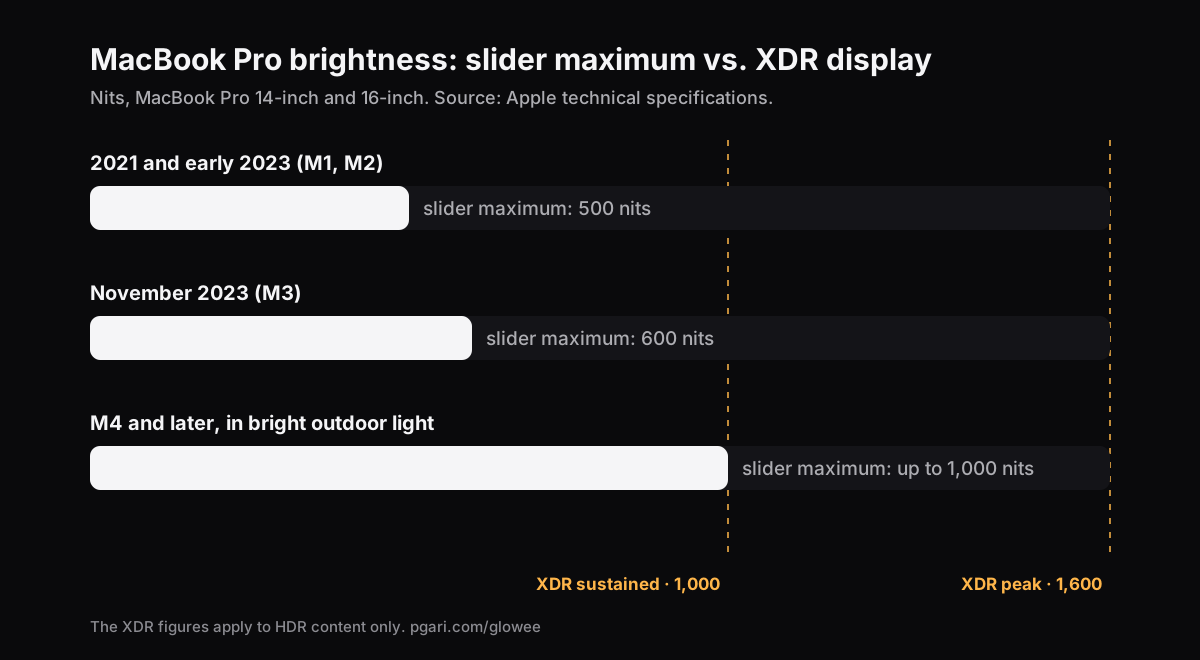
Read the first row across and the problem is plain: half the sustained figure and under a third of the peak. That is why the same machine looks extraordinary playing a film and ordinary in a spreadsheet next to a sunlit window. The M4 sheet is the exception — Apple quotes up to 1,000 nits for normal content there, and qualifies it as an outdoor figure. Apple also lists a nano-texture display as a build option on that model, which is a different approach to the same problem: cut the reflection instead of raising the light.
Off the mains, the rules change
Anyone who works through a power cut knows the laptop is the thing that stays on. Three settings in System Settings → Battery are worth reading when the screen looks flat off the mains. Apple's own descriptions, in Apple's own words:
- Slightly dim the display on battery — "Conserve energy by dimming the display when your Mac is not plugged in." The only one of the three that Apple documents as touching brightness.
- Low Power Mode — "Reduce energy usage to increase battery life." Apple's description stops there, and so does this page.
- Optimise video streaming while on battery — "While on battery power, play high-dynamic-range (HDR) video in standard dynamic range (SDR), which requires less energy."
The third one concerns video playback and nothing else. If you are running on battery through an outage and the screen has gone quietly flat, the first entry is the one to check. In System Settings → Lock Screen, Turn display off on battery when inactive also has its own timer, separate from the one for the power adapter.
Brightness is not free on battery either way. Glowee's own terms page puts it plainly: running a display brighter uses more power and generates more heat, exactly as raising the built-in slider does. On a long unplugged stretch, that is an argument for lighting one window rather than the whole screen.
Two ways to add light, and only one keeps your colours
macOS hands the reserve to apps as extended dynamic range, or EDR. An app can put the display into HDR mode and scale what is drawn on it. There are two approaches and they do not look alike.
Draw a bright layer over everything. Simple to build, and you end up reading through a veil of white. Contrast flattens and colours go pale.
Ask the panel for the light it already has. This is what Glowee does. It puts the XDR panel into HDR mode and scales the display's gamma table linearly, which lifts every shade by the same proportion. There is no tone-mapping change, no colour shift and no white layer. Photographic and design work keeps the colours you set.
Three levels, each a fixed factor applied within whatever headroom the display has at that moment:
| Level | Gamma factor, where the slider's maximum is 1.00 |
|---|---|
| Low | ×1.20 |
| Medium | ×1.38 |
| Max | ×1.50 |
Switch it on from the sun in the menu bar, or press ⌃ ⌥ ⌘ G from wherever you are.
Put the light where you are reading
A brighter screen is brighter everywhere, including the half of it you are ignoring. Boost Area decides where the light lands:
- Whole Screen — the entire display goes up.
- Active Window — only the window you are working in. Click elsewhere and the light moves with you.
- Pinned — the light stays on one window while you move around the rest of the desktop.
Outdoors with a document, the second option is usually the right one. The page you are reading gets the panel's reserve, the rest stays where it was, and the machine is not lighting the whole screen for no reason.
When macOS resets the display behind you
True Tone, Night Shift and sleep all reset the display's settings. Glowee notices and puts your level back within two seconds, and after sleep it re-attaches to your displays at the level you left.
One behaviour worth knowing before you go looking for it in the settings: choosing a Spotlight level starts Glowee if it was off, and moves Boost Area from Whole Screen to Active Window, because Spotlight needs a single window to light. And ⌃ ⌥ ⌘ G takes Spotlight with it when it switches Glowee off, then hands it back when you switch on again.
Which screens have headroom, and which do not
This is a property of the panel, not of the software.
Has headroom:
- MacBook Pro 14″ and 16″ from 2021 onwards, carrying the Liquid Retina XDR panel
- Apple Pro Display XDR
- Other EDR-capable external displays. Every connected EDR display is lifted at the same time, so a Pro Display XDR on the desk rises together with the built-in screen.
Has none: the MacBook Air, and any Mac whose display has no XDR panel. Its slider maximum is the most light the screen will ever emit, and nothing installed on the machine changes that. A pale layer painted on top makes the picture washed out, not brighter. On those machines the useful work is in the settings list at the top of this page — and if the real trouble is a cluttered screen rather than a dim one, turning down the windows you are not using works on any display at all.
The cost of asking for more light
Extra light means extra power and extra heat, exactly as it does when you raise the slider by hand. Switch the boost off when you come back indoors — that is what the keyboard chord is for, one to turn it on and the same one to turn it off.
None of the extra brightness reaches a capture. Screenshots and screen recordings of a boosted screen come out looking perfectly normal, which is fine for you and useless for an audience. If the point is to show someone where to look, that is a different feature: Spotlight dims everything except your window, and Spotlight is captured.
MacBook Pro brightness: what people ask
Can my MacBook screen go even brighter?
On a MacBook Pro fitted with a Liquid Retina XDR display, yes. The slider stops at the SDR limit and the panel holds HDR headroom above it, which an app can open for ordinary windows. Glowee lifts by up to 1.5×. On a MacBook Air there is no reserve above the slider to open.
How do I increase the brightness on my MacBook?
F2, or Control Centre → Display. Then switch off Automatically adjust brightness in System Settings → Displays and Slightly dim the display on battery in System Settings → Battery, so nothing is pulling it back down behind you.
The slider is at the top — why does the screen still look dark?
Usually the ambient light sensor reading a bright room, a battery setting doing its job, or an unfair comparison with HDR video — which macOS permits to run at up to 1,600 nits while the window beside it is held at 500 or 600.
How bright is 1,600 nits?
One nit is a candela per square metre — the standard unit for how much light a surface throws at you. Apple quotes 500 nits of SDR on a 2021 or early-2023 MacBook Pro with the slider all the way up, which makes a 1,600-nit highlight about three times as bright as the white of a document. That figure is for HDR highlights only; hold the whole screen white and the sustained rating is 1,000 nits.
Can brightness be adjusted while HDR content is playing?
Yes. The brightness keys keep working while HDR content plays, and HDR highlights stay above everything else on the screen.
How do I stop my MacBook from dimming?
Three places. Automatically adjust brightness in System Settings → Displays; Slightly dim the display on battery in System Settings → Battery; and, if the screen goes dark only after a minute of nothing, the two Turn display off … when inactive timers in System Settings → Lock Screen.
Does a MacBook Air get as bright as a Pro?
Not in the sense that matters here. The Air has no XDR panel, so it has no HDR headroom above the slider for an app to use. Spotlight, which is plain dimming, works on it perfectly well.
Can I see what it does before paying anything?
Every feature is unlocked for the first seven days, with no account and no card involved. Then it becomes a one-off purchase — one Mac, or three Macs on one key — with a 30-day refund behind it.
See it on the screen in front of you
PGari Glowee is one menu bar app of under 2 MB, running on macOS 13 or later, Apple silicon and Intel alike. It adds no kernel extension and no background helper, and the moment you quit, the display is back where macOS had it. Related reading: keeping one window in focus and a spotlight for screen recordings.
More Glowee guides
- An ADHD focus app for the Mac: read this before you buy one
- Dim inactive windows on a Mac without closing a single one
- How to focus on a window on a Mac, and what Focus mode will not do
- How to highlight the active window on a Mac when the screen is full
- How to screen record on a Mac and keep the attention on one window
Sources
- support.apple.com/en-za/111902
- support.apple.com/en-za/111340
- support.apple.com/en-za/111838
- support.apple.com/en-za/117735
- support.apple.com/en-za/117737
- support.apple.com/en-za/121552
- support.apple.com/en-za/121553
- support.apple.com/en-za/guide/mac-help/mchlp2704/mac
- support.apple.com/en-za/guide/mac-help/mchlfc3b7879/mac
- support.apple.com/en-za/guide/mac-help/mh11784/mac
- support.apple.com/en-za/102147
- support.apple.com/en-za/102650