 PGari Glowee: Mac brightness with window spotlight
MacBook Pro brightness: where the slider stops and the panel carries on
Short answer: on a MacBook Pro the brightness slider is a software ceiling, not the panel's ceiling. Apple's own UK specifications for the 14-inch and 16-inch MacBook Pro list 1,000 nits sustained and 1,600 nits peak for HDR content — but only 500 nits for everything else on the 2021 and early-2023 machines, and 600 nits on the November 2023 models. Hold F2 until the slider is full and the display is still running at roughly half of what it can do. The rest is set aside for HDR video. PGari Glowee opens a slice of that reserve for everyday work: as much as 1.5× beyond where the slider stops, either across the whole display or in the single window you are typing in.
Below: the settings to rule out first, what Apple's figures actually say, and which Macs can go further.
Rule out macOS before you blame the panel
A screen that looks flat at full slider is usually a setting rather than a fault. Four things to check, in this order.
- The brightness keys, with a finer step. F2 up, F1 down. Apple's shortcut list adds a detail worth knowing: hold Option-Shift with them and the brightness moves in smaller steps, and adding Control applies the change to an external display where the display supports it.
- Automatic brightness. System Settings → Displays → Automatically adjust brightness. The ambient light sensor pulls the screen down in a dim room, which is exactly the moment you notice it. Apple's own caveat is worth reading before you switch it off: doing so "may affect battery life, energy consumption and long-term display performance."
- The battery setting. System Settings → Battery, under Additional Options, lists Slightly dim the display on battery, described as "Conserve energy by dimming the display when your Mac is not plugged in." On a laptop that spends its day off the mains, this is the single most common culprit.
- True Tone. Apple describes True Tone as using "advanced multichannel sensors to adjust the colour and intensity of your display … to match the ambient light." It changes intensity, not only warmth, so turn it off for a moment and compare.
If the slider is at the top and the picture is still not bright enough, you have met the ceiling macOS sets — not the ceiling of the display.
Why full MacBook Pro brightness is only part of the panel
The Liquid Retina XDR display in a MacBook Pro is built to show HDR video, and HDR needs headroom: highlights that run several times hotter than the white of a page. To keep that headroom in hand, macOS holds ordinary content — what Apple calls SDR — well below the panel's maximum.
| MacBook Pro 14″ and 16″ | SDR, slider at maximum | XDR, sustained full screen | XDR, peak |
|---|---|---|---|
| 2021 and early 2023 | 500 nits | 1,000 nits | 1,600 nits |
| November 2023 | 600 nits | 1,000 nits | 1,600 nits |
| M4 and M5 | up to 1,000 nits outdoors | 1,000 nits | 1,600 nits |
Figures from Apple's UK technical specifications for each model. The XDR columns apply to HDR content only.
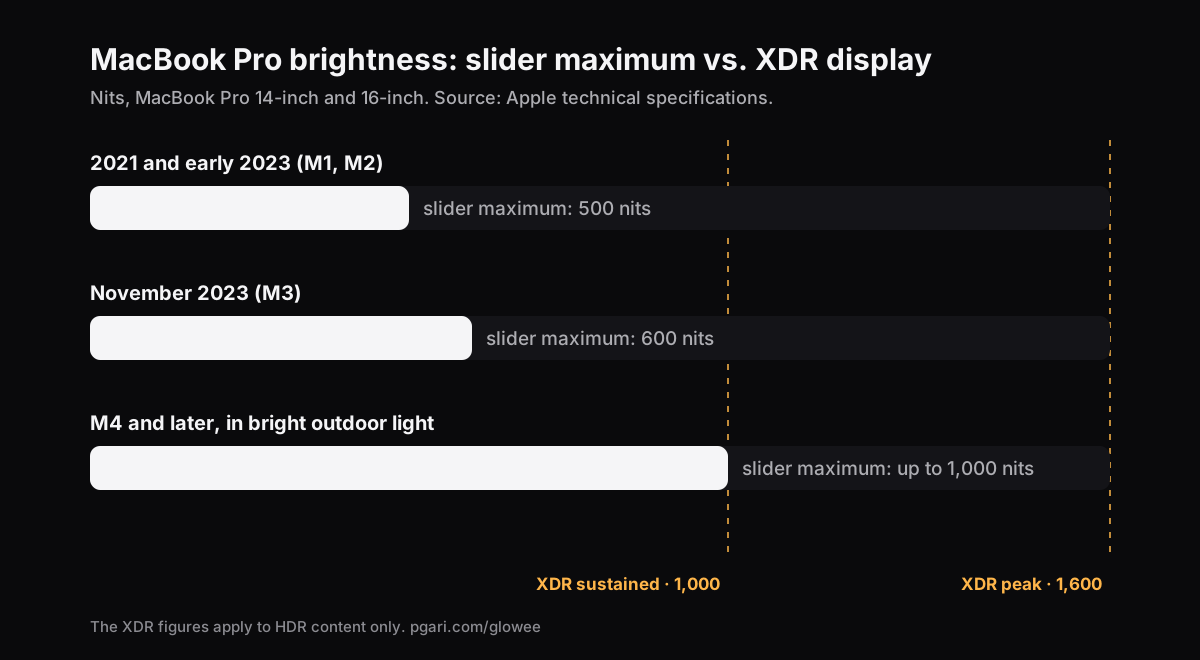
Read the top row again. On a 2021 or early-2023 machine, a full slider gives you half of what the panel sustains and under a third of what it peaks at. On the November 2023 machines the same sums come out at 60 per cent and a shade over a third. That gap is why the same laptop looks superb playing a film and washed out in a spreadsheet next to a window on a bright afternoon. On the M4 and M5 machines Apple specifies up to 1,000 nits for ordinary content, but qualifies it as outdoor brightness.
Two ways an app adds light, and only one keeps the colour
The reserve is reachable because macOS exposes it to apps as extended dynamic range (EDR). An app can put the display into HDR mode and then change what is drawn on it. There are two approaches, and they do not look alike.
The overlay approach paints a bright layer over the picture. It is easy to build, and you end up reading through a sheet of white: contrast flattens and colours go chalky.
The panel approach leaves the picture alone and asks the display for more light. That is what PGari Glowee does. It drives the XDR panel into HDR mode and scales the display's gamma table linearly, so every shade rises in the same proportion. Nothing is re-mapped, nothing is tinted and nothing is laid over the top, so photographs and design files keep the colours you gave them.
Glowee has three levels. Each one multiplies the gamma table by a set amount, limited by whatever headroom the panel has spare at that instant:
| Level | Gamma factor (slider maximum = 1.00) |
|---|---|
| Low | 1.20× |
| Medium | 1.38× |
| Max | 1.50× |
Turn it on from the sun in the menu bar, or press ⌃ ⌥ ⌘ G without leaving the app you are in.
Put the light on one window instead of the whole screen
A brighter screen is a brighter everything, including the half you are not reading. Glowee's Boost Area setting is what aims it:
- Whole Screen lifts the entire display.
- Active Window lifts the window you are working in and nothing else; click elsewhere and the light moves with you.
- Pinned keeps the light on one window while you move about the rest of the desktop.
Reading a long document on a train with the sun coming through the window, this is usually the better answer: the page gets the panel's extra light and nothing else changes.
When macOS resets the display
Night Shift, True Tone and going to sleep can each knock a display's settings back. Glowee spots that and puts your level back inside two seconds; after sleep it re-attaches to your displays at whatever level you left them on.
Which Macs can go further, and which cannot
This is decided by the display, not by the app.
Can be lifted — they have EDR headroom:
- MacBook Pro 14″ and 16″, 2021 onwards, with Liquid Retina XDR
- Apple Pro Display XDR
- Other EDR-capable external displays. Glowee lifts every connected EDR display at once, so a Pro Display XDR beside the built-in panel rises with it.
Cannot be lifted: a MacBook Air, and every other Mac without an XDR panel behind the glass. The slider's maximum is all the light the screen makes, and no software changes that. A pale layer over the picture makes it paler, not brighter. On those machines the useful moves are the four settings above and, if the real complaint is a cluttered screen rather than a dim one, turning down the windows you are not using, which works on any display.
What the extra light costs
Glowee's own terms put it plainly: "Running a display brighter uses more power and generates more heat, exactly as raising the built-in brightness slider does." Switch the boost off when you come back indoors — that is what the shortcut is for: one chord on, one chord off.
The boost is also invisible to anyone else. It is left out of screenshots and screen recordings, so a recording made on a lifted screen looks perfectly normal to whoever watches it. If the point is to show viewers where to look, that is a different feature: Spotlight dims everything except your window, and it is captured.
Questions people ask about MacBook Pro brightness
Can I make my MacBook screen even brighter?
If it is a MacBook Pro with a Liquid Retina XDR display, yes. The slider stops at the SDR limit and there is HDR headroom above it that an app can open for ordinary content — Glowee by as much as 1.5×. On a MacBook Air, no: the slider's maximum is the panel's maximum.
Why is my screen so dark even at full brightness?
Usually one of three things. Automatic brightness is lowering it to suit the room, a battery setting is dimming it off the mains, or you are comparing it with HDR video, which macOS allows to run far brighter than a document on the same panel — up to 1,600 nits against 500 or 600.
How bright is 1,600 nits?
One nit is one candela per square metre. Against the 500 nits Apple specifies for a 2021 or early-2023 MacBook Pro at full slider, a 1,600-nit highlight is roughly three times as bright. That 1,600 is an HDR highlight figure rather than a full white screen; sustained across the whole screen Apple lists 1,000 nits.
Can you adjust the brightness in HDR mode?
Yes. The brightness keys keep working while HDR content plays, and the HDR highlights stay brighter than the rest of the screen.
How do I stop my MacBook dimming on its own?
Switch off Automatically adjust brightness in System Settings → Displays and Slightly dim the display on battery in System Settings → Battery. If the screen goes dark only after a spell without input, that is System Settings → Lock Screen, where Turn display off on battery when inactive and its mains equivalent each take a time.
Does this change the colours?
Not with the panel approach. Glowee scales the gamma table linearly and leaves tone mapping alone, so the colours stay where you put them and only the light output moves.
Is there a free way to try it?
Glowee runs in full for 7 days: every feature, nothing locked, no account. After that it is a one-off purchase — one Mac, or three Macs on one key — and you have 30 days to ask for your money back.
Try it on your own screen
PGari Glowee is a single menu bar app of under 2 MB, for macOS 13 or later, universal across Apple silicon and Intel. Nothing goes into the system — no kernel extensions, no background helpers — and quitting it puts the display straight back.
More Glowee guides
- An ADHD focus app for the Mac: a screen tool, and nothing more
- Dim inactive windows on a Mac: what macOS gives you and what an app adds
- Focus on a window on a Mac: what Focus mode does, and what it leaves alone
- Highlight the active window on a Mac: dim the rest, or brighten the one
- Screen record on a Mac, and make it obvious which window you mean
Sources
- support.apple.com/en-gb/111902
- support.apple.com/en-gb/111340
- support.apple.com/en-gb/117735
- support.apple.com/en-gb/117737
- support.apple.com/en-gb/121552
- support.apple.com/en-gb/125405
- support.apple.com/en-gb/guide/mac-help/mchlp2704/mac
- support.apple.com/en-gb/guide/mac-help/mchlfc3b7879/mac
- support.apple.com/en-gb/guide/mac-help/mh11784/mac
- support.apple.com/en-gb/102147
- support.apple.com/en-gb/102650