 PGari Glowee: Mac brightness with window spotlight
Focus on a window on a Mac: what Focus mode does, and what it leaves alone
Short answer: a search for focus window on a Mac usually means one of two things, and macOS keeps them in separate boxes. The thing most people call Focus mode — the item in System Settings and Control Centre — governs notifications and nothing else. Apple's own description is that it lets you "pause and silence all notifications or allow only certain notifications," and the settings behind it run to allowed people and apps, schedules, Focus filters for Calendar, Mail, Messages and Safari, and sharing your status. No window appears anywhere on that list. Where windows are concerned, Apple documents full screen, Stage Manager and Option-Command-H — and each of the three works by taking the other windows out of sight. To leave them in place and merely stop them competing for your eye, you need an app that shades them: Glowee's Spotlight turns down everything bar the window you are in, on whatever display you have, at the press of ⌃ ⌥ ⌘ S. Focus silences the interruptions; Spotlight silences the screen.
Focus mode, in the words of the people who built it
Focus is Apple's name for a set of notification rules, and Do Not Disturb is one of them — Apple calls it "the Do Not Disturb Focus" and notes that it "is always available." It sits in the same list as Work, Gaming and anything you make yourself, and each one can pause and silence everything, or let through the people and apps you nominate.
Switching one on. Open Control Centre from the menu bar, click anywhere inside the Focus section, then pick the Focus you want; its icon lights up in the list and shows in the menu bar. You can cap it with a duration such as "For 1 hour." Do Not Disturb has a shortcut of its own: Option-click the date and time in the menu bar.
Switching it off. Open the same list and click the Focus again — its icon is no longer highlighted.
Setting one up. System Settings → Focus → Add Focus. Take one Apple supplies, such as Gaming or Work, or choose Custom, give it a name, a colour and an icon. You can create up to ten. Inside each Focus:
- Allowed People and Allowed Apps decide what still gets through.
- Set a Schedule starts it for you — on the clock, at a place, or when you open a particular app.
- Focus Filters change how Calendar, Mail, Messages or Safari behave while it runs. Apple's example is a set of Tab Groups that appear in Safari during the Work Focus.
With Apple Intelligence switched on there is also a Reduce Interruptions Focus, "which shows you only the most important notifications." And because a Focus travels between devices signed in to the same Apple Account, Share across devices is worth knowing about: it is on by default, so a Focus you start on the iPhone starts on the Mac too.
Why a Focus cannot help with the windows
Run down Apple's own list of Focus settings — Focus list, Add Focus, Share across devices, Focus status, Intelligent Breakthrough & Silencing, Allowed People, Allowed Apps, Set a Schedule, Focus Filters, Delete Focus — and nothing there touches how the screen looks. A Focus stops the banner. It does not decide which window your eye lands on.
For that, five tools, four of them Apple's:
| Tool | How you switch it on | What happens to the other windows |
|---|---|---|
| Focus (Do Not Disturb, Work …) | Control Centre → Focus | Nothing. Focus settings concern notifications, schedules and filters |
| Full screen | Green button, top-left of the window, or Control-Command-F where supported | The app fills the entire screen |
| Stage Manager | System Settings → Desktop & Dock → Desktop & Stage Manager | Moved to the left side; the current window sits in the centre |
| Hiding the others | Option-Command-H | Hidden; only the front app stays in view |
| PGari Glowee, Spotlight | ⌃ ⌥ ⌘ S, or the sun in the menu bar | They stay exactly where they are, dimmed |
Rows one to four are Apple's, taken from the Mac User Guide and the shortcut list; the last row is from pgari.com/glowee/.
Full screen is the most decisive of them and the least flexible. Apple sells it on working "without desktop distractions," which it achieves by filling the display with one app — and your second window is then gone unless you add it in Split View. That is fine for drafting. It is no good when you are writing from a source, coding against documentation, or taking minutes while a call runs, where two or three windows have to be visible and only one of them should be obvious.
Focus on a window on a Mac: dim everything else
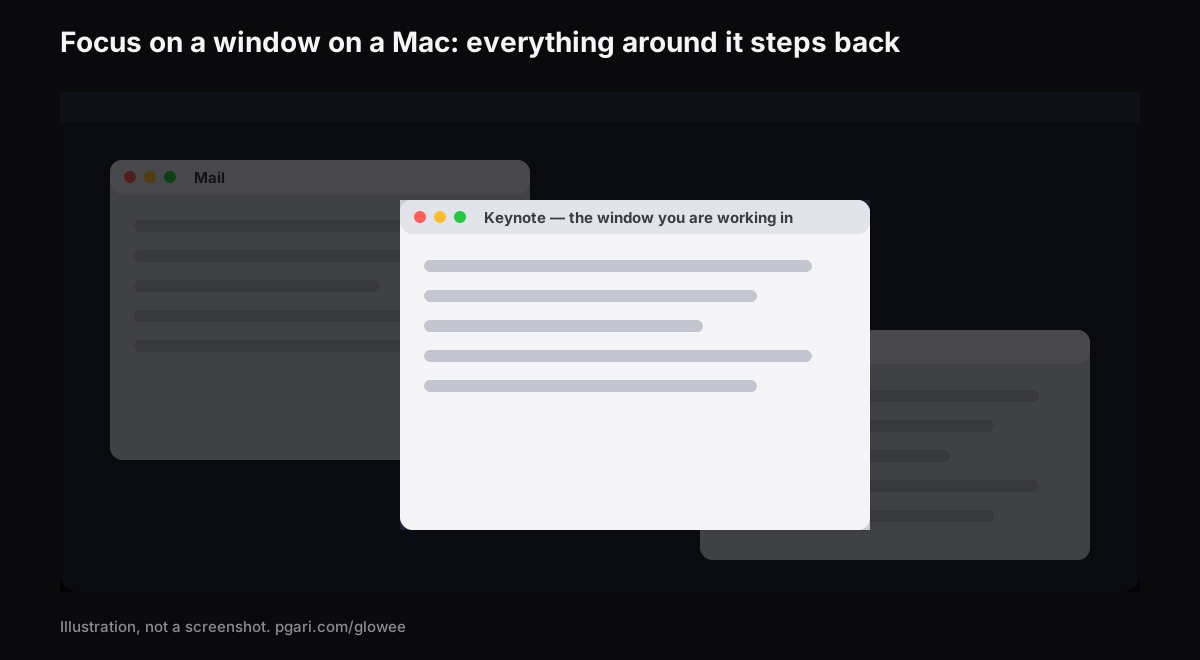
PGari Glowee is a menu bar app, and its Spotlight feature "dims everything except the window you are in," leaving your layout untouched.
- Three depths: Off, Soft and Strong — Soft for a tidy desktop, Strong when there is a lot going on.
- One shortcut: ⌃ ⌥ ⌘ S from inside any app, returning at whatever depth you last chose.
- It keeps up with you. Move to another window and the lit area moves too. Glowee never picks the window for you; your click does, and Glowee follows.
- Whatever you are looking at, XDR or otherwise, built in or plugged in — a MacBook Air included.
On a 14″ or 16″ MacBook Pro from 2021 onwards, or on any other EDR display, there is a second half to this. Set Boost Area to Active Window and that window alone is pushed past the point where the macOS slider gives up. Run Spotlight at the same time and the window you are in rises while the rest of the desktop sinks. That half depends on the panel: a MacBook Air gets Spotlight and nothing more. The numbers behind it are in the MacBook Pro brightness guide.
Glowee has no connection to Apple's Focus. You switch Spotlight yourself, from the menu or the shortcut, and it does not manage notifications — so a Focus is still what keeps the banners away. The two sit side by side rather than overlapping, which is why the practical way to focus on a window on a Mac is usually to run both: a Focus for the interruptions, Spotlight for everything the screen is still showing you.
The other window dimmer
HazeOver is the name most people type into the search box here. It "automatically highlights the front window by dimming background windows," at an intensity of your choosing, and unlike Glowee it is wired into Apple's Focus: the site sets out a Focus Filter that switches the dimming, or alters its strength and colour, according to which Focus happens to be running. Need that connection and it is HazeOver you want, not Glowee. The two are put side by side in how to dim inactive windows on a Mac.
The three things people mean by "focus app"
Search results for a focus app on the Mac mix up three categories, and knowing which you want saves an afternoon.
- Blockers and timers. The app that is actually called Focus "removes distractions so you can focus and do your best work" — it "prevents you from going to distracting websites," can block apps too, and ships with Pomodoro timers. Glowee is none of that: no blocking, no timer.
- Notification control. Apple's Focus, already installed.
- Window dimmers. Glowee and HazeOver, which turn down what surrounds the window you are using.
They do not compete. A blocker decides what you can open, a Focus decides what may interrupt you, and a dimmer decides where your eye goes.
If you arrived here because of ADHD, there is a separate page that is straight about what this app is. Glowee makes no medical claim of any kind, here or there.
Questions people ask
What does Focus mode on a Mac do?
It silences notifications, or allows only the ones you nominate. It can run to a schedule, change what Calendar, Mail, Messages and Safari show, and follow you across devices signed in to the same Apple Account. Nothing in Apple's list of Focus settings dims or arranges windows.
How do I turn on Focus mode on my MacBook?
Open Control Centre from the menu bar, click into the Focus section and choose one — Do Not Disturb, say. If you want to build your own first, that is System Settings → Focus.
How do I turn off Focus mode on my Mac?
Same route: Control Centre, the Focus section, then click whichever Focus is lit. Do Not Disturb also comes off with an Option-click on the date and time in the menu bar. If it keeps coming back by itself, check Set a Schedule inside that Focus and then Share across devices — one started on your iPhone will start here as well.
Is Focus mode the same as Do Not Disturb?
Do Not Disturb is one Focus among several; Apple refers to it as "the Do Not Disturb Focus." Work, Personal, Gaming and any you build yourself are the others.
Should Focus mode be on or off?
On while you need quiet, off when you want to be reachable — and since Apple's settings include a schedule by time, place or app, you need not decide it every morning.
Why is my active window on my Mac losing focus?
That is the third sense of the word: which window is currently active. Apple's guide says only that "only one app at a time is active." The Focus pages do not touch it, and Glowee does not govern it either — Glowee simply follows whichever window you click. No troubleshooting for it is attempted here.
Do I need an XDR display to dim the other windows?
No. Spotlight is happy on any screen, built in or plugged in. It is only the extra brightness inside the active window that insists on an XDR or other EDR panel.
Is there a free way to try it?
Apple's Focus comes with macOS. Glowee runs in full for 7 days: every feature, nothing locked, no account. After that it is a one-off purchase — one Mac, or three Macs on one key — and you have 30 days to ask for your money back.
Try it on your own screen
PGari Glowee is a single menu bar app of under 2 MB, for macOS 13 or later, universal across Apple silicon and Intel. Nothing goes into the system — no kernel extensions, no background helpers — and quitting it puts the display straight back.
More Glowee guides
- An ADHD focus app for the Mac: a screen tool, and nothing more
- Dim inactive windows on a Mac: what macOS gives you and what an app adds
- Highlight the active window on a Mac: dim the rest, or brighten the one
- MacBook Pro brightness: where the slider stops and the panel carries on
- Screen record on a Mac, and make it obvious which window you mean
Sources
- support.apple.com/en-gb/guide/mac-help/mchl613dc43f/mac
- support.apple.com/en-gb/guide/mac-help/mchl999b7c1a/mac
- support.apple.com/en-gb/guide/mac-help/mchlff5da36d/mac
- support.apple.com/en-gb/guide/mac-help/mchl9c21d2be/mac
- support.apple.com/en-gb/guide/mac-help/mchl534ba392/mac
- support.apple.com/en-gb/guide/mac-help/mchlp2469/mac
- support.apple.com/en-gb/102650
- hazeover.com
- heyfocus.com