 PGari Glowee: Mac brightness with window spotlight
Focus on a window on a Mac when the other windows have to stay open
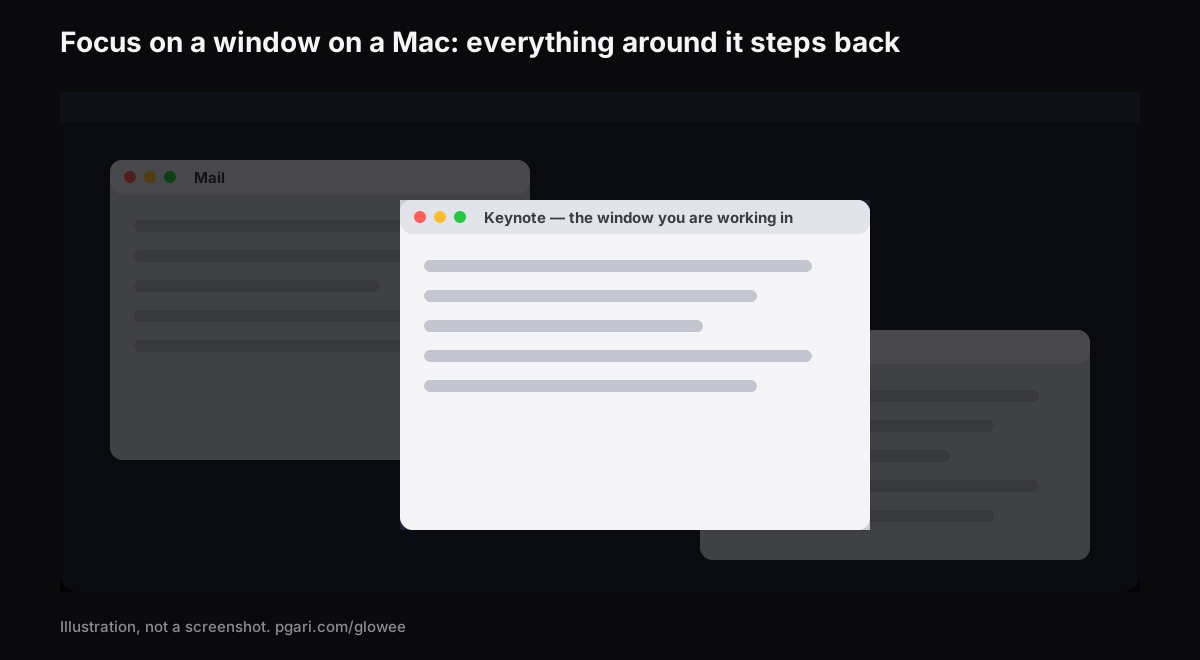
Short answer: Try to focus on a window on a Mac and you run into two unrelated things that share the word, so separating them is the whole job. The first — the Focus you find in System Settings and Control Centre, which most people call Focus mode — governs notifications only. Apple's own description is a way to "pause and silence all notifications or allow only certain notifications". Run down Apple's complete list of Focus settings and you get allowed people, allowed apps, schedules, Focus filters for Calendar, Mail, Messages and Safari, sharing across devices, and Focus status. Not one entry touches a window. For windows the Mac User Guide offers full screen, Stage Manager and Option-Command-H — three tools that all work by pushing everything else out of sight. Where you would rather leave the other windows in place and simply stop them competing for your eye, an app has to dim them: PGari Glowee's Spotlight turns down everything except the window you are in, on any Mac display, at ⌃ ⌥ ⌘ S. Notifications are Focus's department, the screen is Spotlight's, and neither substitutes for the other.
Below: what Apple's Focus really governs and how to work it, then each method of bringing one window forward and the price each one charges.
What Focus mode on a Mac governs
Focus is the name Apple gives a set of rules about notifications. Do Not Disturb is one of them — Apple writes of "the Do Not Disturb Focus" and notes that it "is always available" — and it shares a list with every Focus you add, Work or Gaming or Personal, and with anything custom you build. Any of them can "pause and silence all notifications or allow only certain notifications", the ones belonging to people and apps you nominate.
Switching one on. Open Control Centre from the menu bar, click anywhere in the Focus section, and click the Focus you want; its icon lights up in the list and turns up in the menu bar. A duration is available — "For 1 hour", say — and while you are inside a scheduled event, "Until the end of this event". Do Not Disturb has a quicker route: hold down Option as you click on the date and time up in the menu bar.
Switching one off. Return to that list and click the Focus a second time. The icon stops being highlighted.
Building one. System Settings, then Focus in the sidebar. Click Add Focus and take one of Apple's — Gaming, Work — or click Custom and supply a name, a colour and an icon. Ten is the limit. Within a Focus:
- Allowed People and Allowed Apps nominate whose notifications still land.
- Set a Schedule brings the Focus on by clock, by place or by app. Under an app-based schedule Apple's wording is that the Focus starts when the app opens and stops when it closes or you move to another.
- Focus Filters alter the behaviour of Calendar, Mail, Messages and Safari while the Focus runs. Apple's illustration is a set of Tab Groups surfacing in Safari during the Work Focus.
Where Apple Intelligence is switched on, a Reduce Interruptions Focus is available too, "which shows you only the most important notifications".
One Mac, several devices. Keeping Focus in step across your Apple devices means that throwing a Focus on the Mac throws it everywhere else as well; the switch is Share across devices in System Settings → Focus. Switch it off where you want a silent Mac and a phone that still rings — a sensible arrangement if the phone is the number your family and your clients use while the Mac is where the work happens. Focus status, in the same panel, is what tells anyone messaging you that your notifications are silenced.
Where Apple's Focus settings stop: at the window
The list, in full, reads: Focus list, Add Focus, Share across devices, Focus status; then inside each Focus its name and colour, Intelligent Breakthrough & Silencing, Allowed People, Allowed Apps, Set a Schedule, Focus Filters, Delete Focus. Between them they decide which notifications reach you, when the Focus runs, and how four of Apple's apps behave. None dims, hides or moves a window. A Focus stops the banner; the windows themselves are somebody else's problem, and Apple documents separate tools for them.
Three come from the Mac User Guide; the fourth is an app.
| Tool | How to switch it on | What happens to the other windows |
|---|---|---|
| Focus (Do Not Disturb, Work …) | Control Centre → Focus | Not covered. Apple's Focus settings concern notifications, schedules and Focus filters |
| Full screen | Green button in the window's top-left corner, or Control-Command-F where the app supports it | The app fills the entire screen |
| Stage Manager | System Settings → Desktop & Dock → Desktop & Stage Manager, or Control Centre | Moved to the left side of the screen; the window you are working with sits in the centre |
| Hiding the other apps | Option-Command-H | Hidden. Only the front app stays in view |
| PGari Glowee, Spotlight | ⌃ ⌥ ⌘ S, or the sun in the menu bar | They stay where they are, dimmed |
First four rows from Apple's Mac User Guide and keyboard shortcut list; last row from pgari.com/glowee/.
Full screen is the most absolute of them — Apple's phrase for it is working "without desktop distractions", earned by handing the whole display to one app. What it costs is the other windows: they are no longer beside you, short of adding one in Split View, which Apple covers on the same page. Fine for a first draft. Useless for reconciling a sheet against a portal, writing code against documentation, or taking notes while a call runs in a window, because those jobs need three or four windows visible at once and still want one of them to be the obvious place to look. To focus on a window on a Mac without hiding its neighbours, dimming is the only method left.
Focus on a window on a Mac by turning everything else down
Glowee sits in the menu bar. Its Spotlight feature, in the product page's words, "dims everything except the window you are in", and your layout is never touched.
- Three positions: Off, Soft and Strong. Which one depends on how cluttered the screen happens to be.
- One chord: ⌃ ⌥ ⌘ S throws Spotlight from any app, returning at whichever level you last used.
- It tracks you. Click into another window and the light goes with it. Nothing in Glowee decides which window is active — your click does, and the light keeps up.
- Any Mac display. Because this is plain dimming, no particular panel is required: XDR or not, internal or external, MacBook Air included.
On a 14-inch or 16-inch MacBook Pro from 2021 onwards, or on another XDR or EDR display, there is a second half to the effect. Put Boost Area on Active Window and only the window in front of you gains extra brightness, carried beyond the point where the macOS slider gives up. Add Spotlight on top and the lit window rises as the rest falls away. That half wants an XDR panel; a MacBook Air cannot be boosted at all, and Spotlight on its own is what that machine gets. The MacBook Pro brightness guide explains the reason.
Nothing links Glowee to Apple's Focus. You throw Spotlight yourself, from the menu or with the chord, and that is the only way it moves. Notifications are untouched by it, so a Focus remains the thing that keeps banners away.
The other app that dims windows
HazeOver is the name most people reach for when they search for window dimming. Its own summary is that it "automatically highlights the front window by dimming background windows", with dimming intensity and animation speed under your control, and it can be wired into Apple's Focus: the site describes a Focus filter that toggles the dimming or shifts its intensity and colour according to which Focus is running. Where that link matters, HazeOver has it and Glowee has not. How to dim inactive windows on a Mac puts the two side by side.
The other things "focus app" can mean
Search for a focus app for Mac and several unrelated categories come back. Knowing which one you are after saves an evening.
- Blockers and timers. The app actually named Focus "prevents you from going to distracting websites", handles the popular browsers, blocks apps as well, and carries timers for the Pomodoro technique. Glowee is none of that: nothing is blocked and no timer exists.
- Notification control. Apple's Focus, already installed.
- Window dimmers. Glowee and HazeOver, which lower whatever surrounds the window in use.
None of the three competes with the others. A blocker rules on what may be opened, Focus rules on what may interrupt, and a dimmer rules on what draws the eye across the screen. Work late with a team several time zones away and all three answer different parts of the same evening.
Here because of ADHD? There is a page devoted to that. No medical claim of any kind is made for Glowee. The app dims what surrounds a window, and nothing beyond that is asserted here.
Questions readers send in
What does focus mode on a Mac do?
Silences notifications, or admits only the ones you nominate. It can follow a schedule, adjust what Calendar, Mail, Messages and Safari display, and stay synchronised across your Apple devices. Nowhere in Apple's list of Focus settings is there an entry for dimming or arranging windows.
How do I turn on focus mode on my MacBook?
Open Control Centre in the menu bar, click into the Focus section, and click a Focus — Do Not Disturb, for example. To build one first, head for System Settings → Focus.
How do I turn off Focus mode on my Mac?
Go back into Control Centre, click the Focus section, and click whichever Focus is highlighted. With Do Not Disturb there is also Option held while clicking the date and time in the menu bar. If it keeps returning, check Set a Schedule inside that Focus, and check Share across devices — a Focus thrown on your iPhone throws the Mac's too.
Is focus mode the same as do not disturb?
Do Not Disturb is one Focus among many, and Apple notes that it is permanently available in the list. Work, Personal, Gaming and anything custom you build are the rest.
Should focus mode be on or off?
On while you need quiet, off while you need to be reachable. Since a Focus can follow a schedule by time, location or app, you can also hand the decision over — switched on, for instance, whenever you open the app you actually work in.
Why is my active window on my Mac losing focus?
A third sense of the word again: which window currently holds input. Apple's Mac User Guide notes that "only one app at a time is active". Apple's Focus pages have nothing to say about it, and Glowee has no control over it either — Glowee follows whichever window you click. Troubleshooting it is outside this page.
Do you want to dim background windows automatically?
Spotlight does it continuously once thrown, and follows every click without further input; HazeOver adds Focus filters and Shortcuts if you want it tied to something else. Neither guesses at your intent — you decide when dimming is on.
Is an XDR display needed just to dim the other windows?
Not at all. Any display takes Spotlight, internal or external. An XDR or other EDR panel is required only for the extra brightness inside the active window.
Can I try it without paying?
Apple's Focus is part of macOS and costs nothing at all. Glowee runs for seven days with every feature open, no account and no card. After that it is a one-time purchase — one Mac, or three Macs on one key, with a 30-day refund.
Try it on your own screen
PGari Glowee is a single menu bar app under 2 MB, built for macOS 13 or later and universal across Apple silicon and Intel. No kernel extension is installed and no background helper is left running; quit the app and the display goes straight back to normal.
More Glowee guides
- An ADHD focus app for Mac? This one only dims the screen
- Dim inactive windows on a Mac: the two apps that actually do it
- Highlight the active window on a Mac, and leave the pointer alone
- MacBook Pro brightness: reaching the nits the slider holds back
- Screen record on a Mac so your viewers know which window to watch
Sources
- support.apple.com/en-in/guide/mac-help/mchl613dc43f/mac
- support.apple.com/en-in/guide/mac-help/mchl999b7c1a/mac
- support.apple.com/en-in/guide/mac-help/mchlff5da36d/mac
- support.apple.com/en-in/guide/mac-help/mchl9c21d2be/mac
- support.apple.com/en-in/guide/mac-help/mchl534ba392/mac
- support.apple.com/en-in/guide/mac-help/mchlp2469/mac
- support.apple.com/en-in/102650
- hazeover.com
- heyfocus.com