 PGari Glowee: Mac brightness with window spotlight
An ADHD focus app for Mac? This one only dims the screen
Short answer: Here is the honest description of what this particular ADHD focus app for the Mac amounts to: PGari Glowee is a screen tool and nothing more, certainly not an aid for ADHD. The one thing it does for concentration is Spotlight, which drops the brightness of everything on the display apart from the window you are typing in, on any Mac panel, thrown and cleared with a single chord, ⌃ ⌥ ⌘ S. Websites go unblocked, no timer runs, no day gets planned, no notification is silenced, and no statement is made anywhere about ADHD, its symptoms or its treatment. Where the thing tugging at your attention is the rest of the screen, this turns the rest of the screen down — and macOS ships with a long list of settings, each given below with its menu path, that quiet a good deal more for nothing.
Written for anyone who searched for an ADHD focus app for the Mac and wants to know exactly what this one is before spending anything on it.
The kinds of tool people mean by an ADHD focus app
Search results for this phrase cover several unrelated categories, each solving a different problem. The last row exists because that is the category Glowee belongs to.
| Kind of tool | Example | How its maker describes it |
|---|---|---|
| Website and app blocker | Freedom | "App, Website & Internet Blocker" |
| Focus timer | Forest | "A mindful focus timer for intentional living" |
| Body doubling | Focusmate | "Virtual body doubling for getting anything done" |
| Visual planner | Tiimo | "Visual Planner for Every Neurotype" |
| Task management | Todoist | "A To-Do List to Organize Your Work & Life" |
| Small single-purpose tools | Goblin Tools | "a collection of small, simple, single-task tools, mostly designed to help neurodivergent people with tasks they find overwhelming or difficult" |
| Window dimmer | HazeOver | "automatically highlights the front window by dimming background windows" |
Every description above is lifted from that maker's own site. The final row is where Glowee sits, and it sits nowhere else on the table. Which category is worth your money depends entirely on what is actually obstructing you, and that is a matter for you and for whichever clinician or coach you work with. A page belonging to one of the apps — this one very much included — is the wrong place to settle it.
What competes with your window on a Mac screen
Leave ADHD out of it for a paragraph and look at the display itself. While you work inside one window, all of this moves, changes or simply sits there around the edges. Each has a macOS setting behind it, and the paths below come from Apple's Mac User Guide as published on Apple's India support site.
| On the screen | macOS setting | Where |
|---|---|---|
| Notification banners | A Focus, such as Do Not Disturb | Control Centre → Focus. For Do Not Disturb you can also Option-click the date and time in the menu bar |
| One app that notifies too often | Allow notifications (off) | System Settings → Notifications → Application Notifications |
| Number badges on Dock icons | Badge application icon (off) | System Settings → Notifications → Application Notifications |
| Notification sounds | Play sound for notification (off) | System Settings → Notifications → Application Notifications |
| The Dock, bouncing icons, suggested apps | Automatically hide and show the Dock; Animate opening applications (off); Show suggested and recent apps in Dock (off) | System Settings → Desktop & Dock |
| The menu bar | Automatically hide and show the menu bar — Always, On Desktop Only, In Full Screen Only or Never | System Settings → Menu Bar |
| Files scattered across the desktop | Show Items: On Desktop (off) | System Settings → Desktop & Dock → Desktop & Stage Manager |
| Desktop widgets | Show Widgets: On Desktop (off) | System Settings → Desktop & Dock → Widgets |
| Interface animation | Reduce motion | System Settings → Accessibility → Motion |
| Animated GIFs in Messages and Safari | Auto-play animated images (off) | Same place as Reduce motion |
| The blinking insertion point | Prefer non-blinking cursor | Same place as Reduce motion |
| Transparent backgrounds in macOS | Reduce transparency | System Settings → Accessibility → Display |
| Everything around a web article | Safari Reader | Smart Search field → Show Reader |
Three of those repay a longer look.
A Focus can trigger itself. Open System Settings → Focus, add a Focus, and hand it an app-based schedule. Apple's account of what follows: the Focus comes on as you open the app and goes off as you close it or move to another. Remembering to switch it on stops being your problem. Time-based schedules work the same way, and you pick which people and which apps still get through — which counts for a great deal when the working day and the family's day share one machine.
Full screen clears the rest away. The green button sits at the top-left corner of the window. Apple's own wording for the result is that you "work without desktop distractions". Inside full screen the menu bar and the Dock come back whenever the pointer reaches them.
Hide the other apps without shutting them. Press Option-Command-H: the app in front survives and all the rest go out of sight. Stage Manager, under System Settings → Desktop & Dock → Desktop & Stage Manager, does a continuous version of the same thing: the app in use stays central while recently used apps line up down the left of the screen.
Where Glowee fits into that
Hiding, whether by full screen or by Option-Command-H, takes the other windows off the screen. Plenty of work will not tolerate that. Writing from a source, coding against documentation, filling in a form from an email, following a lesson in one window while working in another — each of those needs two or three windows open simultaneously, with exactly one of them holding your attention at any moment.
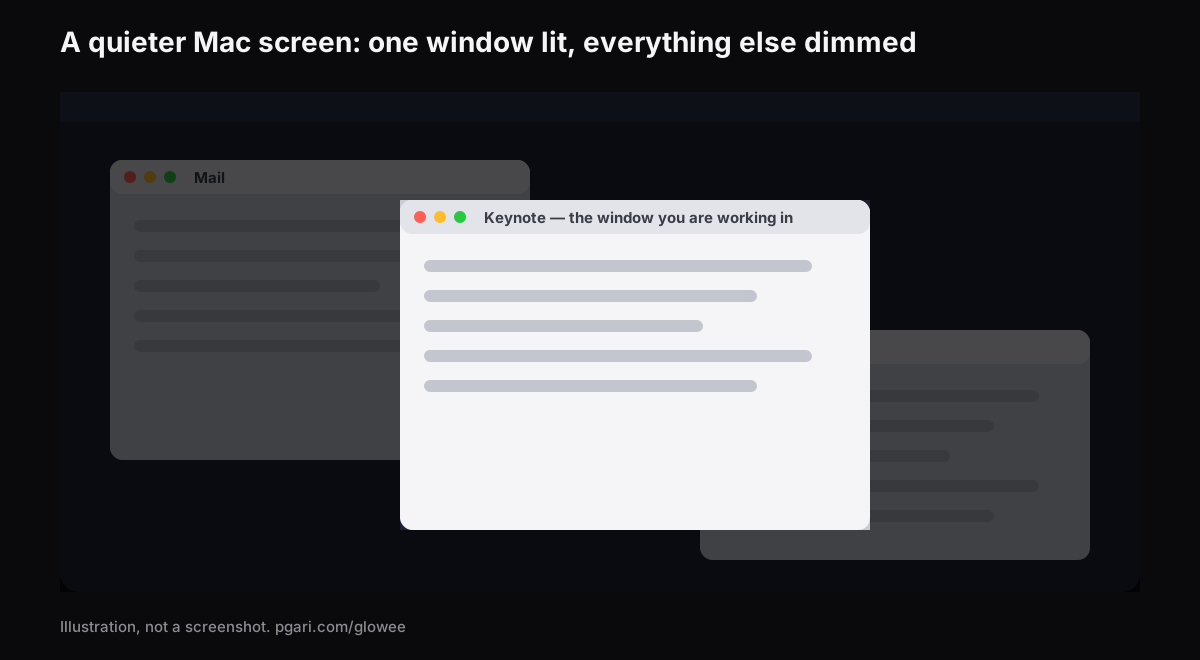
Spotlight is built for precisely that case: nothing moves, nothing closes, and everything except your current window is turned down.
- Three positions: Off, Soft and Strong. Which one depends on how cluttered the screen is at the time.
- It tracks you. Click into another window and the light goes with it.
- One chord. ⌃ ⌥ ⌘ S in any app switches Spotlight on or off, returning at whichever level you last used.
- Any Mac display. This is plain dimming with no special panel required, so a MacBook Air or an external monitor works as well as anything else.
- Nothing to set up. A sun in the menu bar holds a single menu. No window, no preferences pane, nothing else to configure.
Given a MacBook Pro with a Liquid Retina XDR display, or another EDR display, Glowee can additionally raise the brightness of the one window you are in — Boost Area → Active Window — so the lit window climbs as everything else falls away. That half insists on an XDR or EDR panel and is impossible on a MacBook Air. Driving a display harder draws more power and makes more heat, exactly as pushing the built-in slider up does.
Worth knowing before a video call or an online class: Spotlight is painted on the screen, so screen recordings and shared screens carry it. Whoever is watching sees the dimming as well. Clear it with ⌃ ⌥ ⌘ S beforehand if you would rather they did not — or keep it on deliberately, which is the whole subject of the screen recording guide.
What Glowee does not do
- No website is blocked and no app is blocked.
- No notification is silenced. That work belongs to a Focus.
- There is no timer in it, no task list and no planner.
- It is not a medical device, not a treatment and not an ADHD aid. Nothing on this page is medical advice.
Apple is notably careful on the same ground. Out of every setting listed above, the only one Apple frames in anything approaching medical language is Dim flashing lights, and even there the accompanying line is that it "should not be relied upon for the treatment of any medical condition". A screen tool is a screen tool.
Common questions about ADHD focus apps
What are the best focus apps for people with ADHD?
Entirely dependent on what is obstructing you, and a page selling one app has no standing to rank the field. The categories sit in the table above — blockers, focus timers, body doubling, planners, task managers, window dimmers. Glowee enters the running only where the obstruction is a crowded screen.
Do any ADHD apps actually work?
Not a question this page can answer, and no claim about ADHD is made for Glowee anywhere. What can be stated is the mechanism: switch Spotlight on and everything but your window is dimmed. Whether a quieter screen helps you is what the free trial is for.
What apps work best for people with ADHD?
Same answer, and the same refusal to rank them. Start from the category, not the brand: decide first whether your problem is interruption, initiation, planning or visual clutter, then look only at the tools built for that.
Are the competing things removed from the screen?
It dims them, it does not take them away. The other windows remain open and clickable, turned down to Soft or Strong. Removing them is a job for full screen or Option-Command-H.
Can macOS do most of this for free already?
Very largely, yes. Focus, the Notifications settings, Reduce motion, hiding the Dock and the menu bar, full screen, Stage Manager and Safari Reader all ship with macOS and are listed above. Begin there and spend nothing.
How to improve productivity on Mac?
Work straight down the table: silence notifications with a Focus, clear badges and sounds for the apps that do not matter, hide the Dock and the desktop items, cut the motion. Only then ask whether the background windows still need turning down.
Does Glowee work on a MacBook Air?
Spotlight does, on any Mac display. Extra Brightness does not — an XDR or EDR display is required for that.
Can I try it before paying?
Yes. Seven days, every feature open, no account and no card. After that it is a one-time purchase — one Mac, or three Macs on one key, with a 30-day refund.
Try it on your own screen
PGari Glowee is a single menu bar app under 2 MB, built for macOS 13 or later and universal across Apple silicon and Intel. No kernel extension is installed and no background helper is left running; quit the app and the display goes straight back to normal. The same feature from three other angles: dimming the inactive windows, holding your focus on one window, and marking out the active window.
More Glowee guides
- Dim inactive windows on a Mac: the two apps that actually do it
- Focus on a window on a Mac when the other windows have to stay open
- Highlight the active window on a Mac, and leave the pointer alone
- MacBook Pro brightness: reaching the nits the slider holds back
- Screen record on a Mac so your viewers know which window to watch
Sources
- support.apple.com/en-in/guide/mac-help/mchl613dc43f/mac
- support.apple.com/en-in/guide/mac-help/mchl999b7c1a/mac
- support.apple.com/en-in/guide/mac-help/mh40583/mac
- support.apple.com/en-in/guide/mac-help/mchlp1119/mac
- support.apple.com/en-in/guide/mac-help/mchlad96d366/mac
- support.apple.com/en-in/guide/mac-help/mchlc03f57a1/mac
- support.apple.com/en-in/guide/mac-help/unac089/mac
- support.apple.com/en-in/guide/mac-help/mchl9c21d2be/mac
- support.apple.com/en-in/guide/mac-help/mchl534ba392/mac
- support.apple.com/en-in/102650
- support.apple.com/en-in/guide/safari/sfri32632/mac
- freedom.to
- forestapp.cc
- focusmate.com
- tiimoapp.com
- todoist.com
- goblin.tools/About
- hazeover.com