 PGari Glowee: Mac brightness with window spotlight
An ADHD focus app for Mac, judged by what it actually changes on screen
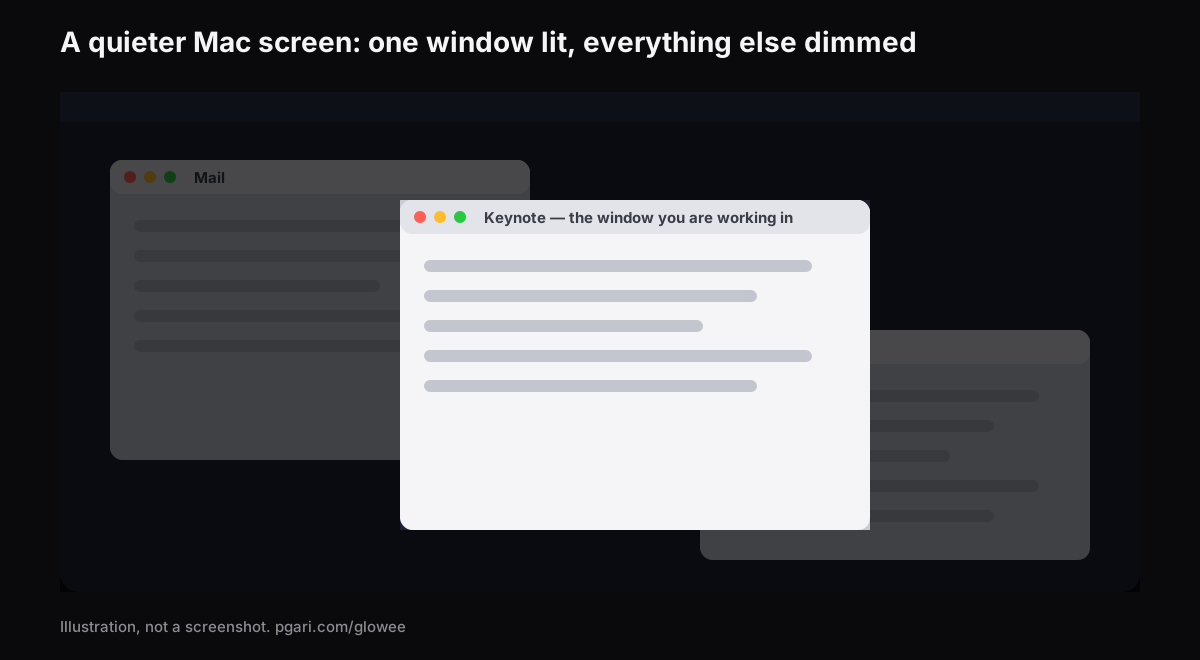
Short answer: Searching for an ADHD focus app for the Mac and landing here, you deserve the boundaries up front. PGari Glowee is a screen tool. Its Spotlight feature turns down everything on the display except the window you are working in — any Mac screen, one chord, ⌃ ⌥ ⌘ S, on and off. For concentration, that is the whole of it. No website blocking, no timers, no weekly plan, no control over notifications, and no claim whatsoever about ADHD, its symptoms or its treatment. If what keeps tugging at you is the rest of the screen, this turns the rest of the screen down. And macOS already ships with a long list of settings — menu paths below — that quiet considerably more than that, for nothing.
This page is written for someone who searched for an ADHD focus app for the Mac and wants a straight answer about which shelf this one sits on.
What people mean when they search for an ADHD focus app
The apps that come up for this search fall into several groups, and they solve different problems. The last row, the window dimmer, is added here because it is the category Glowee belongs to.
| Category | An example | The maker's own words |
|---|---|---|
| Blocking sites and apps | Freedom | "App, Website & Internet Blocker" |
| A timer to work against | Forest | "A mindful focus timer for intentional living" |
| Working alongside a stranger | Focusmate | "Virtual body doubling for getting anything done" |
| Planning the day visually | Tiimo | "Visual Planner for Every Neurotype" |
| Keeping the list | Todoist | "A To-Do List to Organize Your Work & Life" |
| One-job utilities | Goblin Tools | "small, simple, single-task tools, mostly designed to help neurodivergent people with tasks they find overwhelming or difficult" |
| Turning down the windows behind | HazeOver | "automatically highlights the front window by dimming background windows" |
Each of those descriptions is lifted from the maker's own site. The bottom row is where Glowee sits, and it sits nowhere else on the table. Which row is worth your money depends on what actually gets in your way — a question for you, and for whatever clinician, psychologist or coach you see. A sales page, this one very much included, has no standing to settle it.
What on a Mac screen competes with the window you are in
Put ADHD aside for a moment and just look at the screen. While you work in one window, all of this moves, changes or sits in view around it — and macOS has a built-in setting for each. The paths come from Apple's Australian Mac User Guide.
| On the screen | macOS setting | Where |
|---|---|---|
| Banners sliding in | A Focus — Do Not Disturb, say | Control Centre → Focus. Option-clicking the date and time in the menu bar also toggles Do Not Disturb |
| The one app that never stops | Allow notifications, switched off | System Settings → Notifications → Application Notifications |
| Alerts that sit there until dismissed | Alert Style set to Temporary | System Settings → Notifications → Application Notifications |
| Red numbers on Dock icons | Badge application icon, switched off | System Settings → Notifications → Application Notifications |
| The noise they make | Play sound for notification, switched off | System Settings → Notifications → Application Notifications |
| A Dock that bounces and suggests | Automatically hide and show the Dock; Animate opening applications off; Show suggested and recent apps in Dock off | System Settings → Desktop & Dock. Option-Command-D toggles the Dock too |
| The menu bar | Automatically hide and show the menu bar (Always / On Desktop Only / In Full Screen Only / Never) | System Settings → Menu Bar |
| Files strewn over the desktop | Show Items: On Desktop, switched off | System Settings → Desktop & Dock → Desktop & Stage Manager |
| Desktop widgets | Show Widgets: On Desktop (off); Dim widgets on desktop | System Settings → Desktop & Dock → Widgets |
| Things sliding and zooming | Reduce motion | System Settings → Accessibility → Motion |
| Animated GIFs in Messages and Safari | Auto-play animated images (off) | System Settings → Accessibility → Motion |
| The blinking insertion point | Prefer non-blinking cursor | System Settings → Accessibility → Motion |
| Flashing or strobing content | Dim flashing lights | System Settings → Accessibility → Motion |
| See-through panels in macOS | Reduce transparency | System Settings → Accessibility → Display |
| The clutter around a web article | Safari Reader | Smart Search field → Show Reader |
Two notes on that table. Apple attaches its own caveat to Dim flashing lights: it "should not be relied upon for the treatment of any medical condition". And Safari Reader is genuinely underrated — Apple describes it as showing an article "in one page, formatted for easy reading and presented without navigation or other distractions".
Three of these deserve a closer look.
A Focus that starts itself. Go to System Settings → Focus, add one, and hand it an app-based schedule. Apple's own wording: the Focus turns on when you open the app, and turns off when you close it or switch to another app. That removes the step of remembering — and if remembering is part of what goes wrong, removing the step is the entire point. Schedules by time behave the same way, and either way you nominate who and what still gets through.
Full screen clears the deck. The green button at the top left of any window does it. Apple's own phrase for the result is that you "work without desktop distractions", and both the menu bar and the Dock stay gone until the pointer goes looking for them.
Hide the other apps without closing them. Option-Command-H keeps the front app and hides everything else. Stage Manager does something similar continuously: Apple describes it as keeping "the app you're working with front and centre, and your desktop clutter-free", with recent apps arranged down the left edge.
Work through that list before you buy anything. It is free, it is already installed, and it removes more noise than any single app will.
Where Glowee fits
Both full screen and Option-Command-H work by removing the other windows, which is no use at all for some work. Writing an assignment off three sources, coding against documentation, copying a form out of an email, marking a stack of submissions — every one of those wants two or three windows visible together, with only ever one of them the window your hands are in.
Spotlight exists for exactly that shape of work. Your layout stays untouched down to the pixel; what changes is that everything other than your current window is turned down.
- Three settings: Off, Soft and Strong. Soft for a mostly tidy screen, Strong when there are six windows, a chat and a video call minimised somewhere.
- It keeps up with you. The light moves to whichever window you click.
- One shortcut. ⌃ ⌥ ⌘ S in any app, on and off. It returns at the level you last used.
- Nothing to turn on first. Choosing Soft or Strong switches Glowee on if it was off.
- No special screen required. Dimming is dimming, so an Air or a borrowed external monitor runs Spotlight as happily as anything else.
- No setting up. The whole app is a sun in the menu bar and one menu beneath it. No window, no preferences pane, nothing to configure — which counts for something if a settings screen with forty switches is itself the reason apps go unused.
On a MacBook Pro with a Liquid Retina XDR display, or another EDR display, Glowee can also raise the brightness of the window you are in alone (Boost Area → Active Window), so the lit window gets brighter while the rest steps back. That second half wants an XDR or EDR panel, so an Air is out. Bear in mind too that a brighter display draws more power and runs hotter, precisely as it does when you push the built-in slider up.
Worth knowing before a video call: Spotlight is drawn onto the screen, which means screen recordings and shared screens carry it. Everyone on the call sees the dimming as well. A tap of ⌃ ⌥ ⌘ S beforehand settles that if you would rather they did not.
What Glowee does not do
- It does not block websites or apps.
- It does not silence notifications. That is what a Focus is for.
- No timer lives in it, no task list and no planner.
- It is not a medical device, not a treatment and not an ADHD aid. Nothing on this page is medical advice.
Questions people ask about ADHD focus apps
What are the best focus apps for people with ADHD?
That depends entirely on what gets in the way, and a page selling one app has no business ranking them. The table further up has the categories: blocking, timers, body doubling, planners, lists and window dimmers. Glowee is worth considering only when the obstacle is a screen with too much on it.
Do any ADHD apps actually work?
Not a question this page is qualified to answer, and Glowee claims nothing about ADHD in either direction. The one statement available is a description: switch Spotlight on and everything but your window is turned down. Whether a quieter screen does anything for you is something a week of the free trial settles faster than any review will.
Does it clear the competing things off the screen?
No — it turns them down. Every other window is still open and still clickable, just sitting at Soft or Strong. Removing them outright is what full screen and Option-Command-H are for.
Can I get most of this free and built in?
Most of it, yes. Focus, the Notifications settings, Reduce motion, hiding the Dock and menu bar, full screen, Stage Manager and Safari Reader all ship with macOS and all appear in the tables above. Exhaust that lot first, then look at what is still in your way.
How do I get more done on a Mac?
Go down the table in order: a Focus for the notifications, badges and sounds off for the apps that do not matter, Dock and desktop items hidden, Reduce motion on. Only then is it worth asking whether the background windows also need turning down.
Does Glowee work on a MacBook Air?
Spotlight does, on any Mac display. The extra brightness does not — that needs an XDR or EDR display.
Can I try it before paying?
You can. Seven free days with nothing held back, no account and no card required. After that it is a one-off purchase — one Mac, or three Macs on one key, with a 30-day refund.
Try it on your own screen
PGari Glowee is a single menu bar app of under 2 MB, running on macOS 13 or later, Apple silicon and Intel alike. Nothing is installed at kernel level and nothing runs in the background; quit it and the screen is back where it started. More on the same feature: dimming inactive windows on a Mac, keeping one window in focus and highlighting the active window.
More Glowee guides
- How to dim inactive windows on a Mac and keep one in the light
- How to keep the focus on a window on a Mac
- How to highlight the active window on a Mac without an outline
- MacBook Pro brightness: how to get past the slider in daylight
- How to screen record on a Mac and put a spotlight on the window you are explaining
Sources
- support.apple.com/en-au/guide/mac-help/mchl613dc43f/mac
- support.apple.com/en-au/guide/mac-help/mchl999b7c1a/mac
- support.apple.com/en-au/guide/mac-help/mh40583/mac
- support.apple.com/en-au/guide/mac-help/mchlp1119/mac
- support.apple.com/en-au/guide/mac-help/mchlad96d366/mac
- support.apple.com/en-au/guide/mac-help/mchlc03f57a1/mac
- support.apple.com/en-au/guide/mac-help/unac089/mac
- support.apple.com/en-au/guide/mac-help/mchl9c21d2be/mac
- support.apple.com/en-au/guide/mac-help/mchl534ba392/mac
- support.apple.com/en-au/102650
- support.apple.com/en-au/guide/safari/sfri32632/mac
- freedom.to
- forestapp.cc
- focusmate.com
- tiimoapp.com
- todoist.com
- goblin.tools/About
- hazeover.com