 PGari Glowee: Mac brightness with window spotlight
How to screen record on a Mac and put a spotlight on the window you are explaining
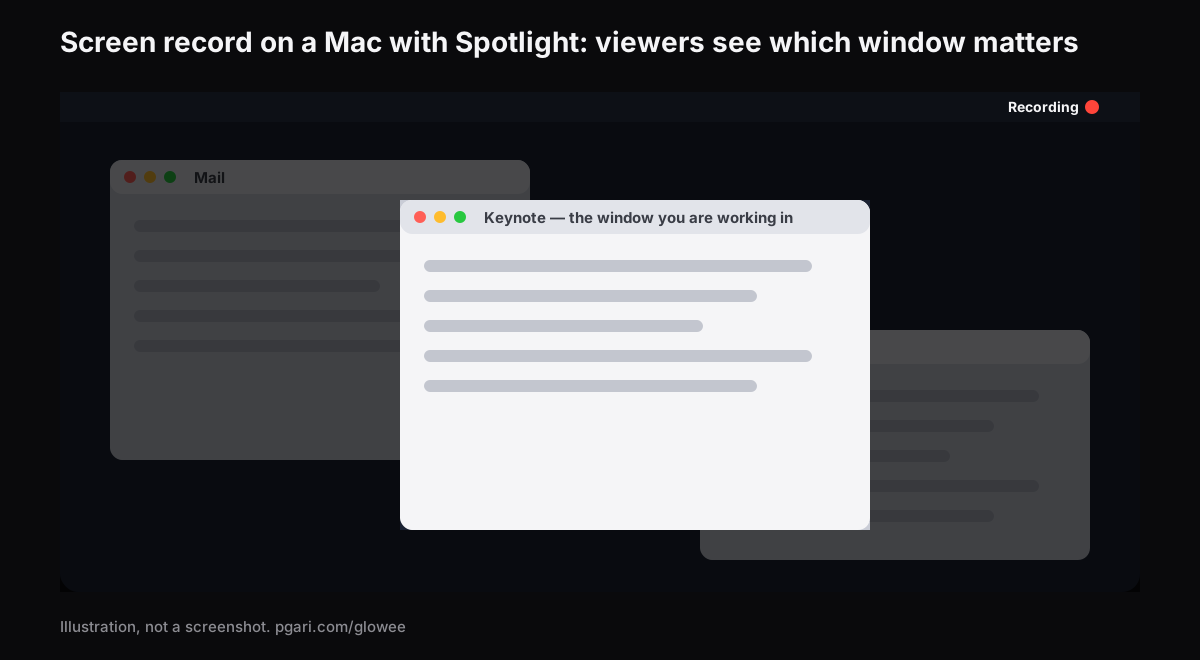
Short answer: Everything you need in order to screen record on a Mac is already installed. Shift-Command-5 brings up the Screenshot toolbar; pick Record Entire Screen or Record Selected Portion and hit Record. Nothing to download, no account to make. What macOS leaves out is direction — record the lot and your viewer gets your notes, your chat and nine other windows arranged around the one you are actually talking about. PGari Glowee closes that gap. Switch on its Spotlight and everything but your current window steps back; the dimming is painted onto the screen, so the recording and the shared screen both carry it. Glowee itself records nothing.
One word of warning first. Apple already uses the name Spotlight for the Mac's search box, the one Command-Space bar opens. The Spotlight on this page is unrelated: it is stage lighting for whoever is watching.
How to screen record on a Mac, step by step
Straight from Apple's own instructions for the built-in Screenshot app.
- Hold down Shift-Command-5. A small toolbar drops onto the screen.
- Choose what to record. Record Entire Screen, Record Selected Portion — drag its borders to adjust the area — or, on macOS Tahoe 26 and later, Record Selected Window.
- Open Options before you start. Choose a microphone to record your voice along with the screen. Switch on Show Mouse Clicks and every click puts a black ring around the pointer. You can set a timer, and change where the file is saved; by default recordings go to your desktop. On supported Macs running macOS Tahoe 26 or later there is also a Capture Format choice: SDR (Most Compatible), which records H.264, or HDR, which records HEVC. Apple notes that an HDR recording shown on an SDR display looks slightly reduced in quality, so SDR is the safer choice for anything you are sending to a class or a client.
- Click Record.
- Finish with the Stop button up in the menu bar, or the Command-Control-Esc chord.
You end up with a .mov named "Screen Recording" plus the date and time. The thumbnail that floats into the corner when you stop is worth a click: trimming happens right there, with no second app involved.
You can start from QuickTime Player instead — File > New Screen Recording, or Control-Command-N — and Apple's QuickTime guide says plainly that this opens the same Screenshot tools.
Two ceilings to plan a tutorial around. Apple warns that certain apps — the Apple TV app is its own example — may refuse to have their windows recorded. And capturing the Mac's own system audio is listed as an option only from macOS 27 Golden Gate onwards.
Put a spotlight on the window you are explaining
A tutorial, a recorded lecture or a handover video is almost always about one window: the spreadsheet, the code editor, the browser tab, the booking system. The rest of the desktop is still in shot, and every second your viewer spends working out which part matters is a second they are not listening.
Spotlight, in Glowee's own words, "dims everything except the window you are in".
- Switching it on happens at the sun in the menu bar, or with ⌃ ⌥ ⌘ S wherever you happen to be. That chord is a toggle, so mid-take you never go near a menu.
- Three strengths: Off, Soft, Strong. Match it to how cluttered the screen is; next time it returns at whatever you had last.
- The light tracks your clicks. Move from the slides to the browser and back and nothing needs re-aiming.
- Pin the window with Pinned so a stray click cannot shift the light halfway through a take.
- Every Mac screen qualifies — XDR or not, laptop panel or external monitor. An Air handles it perfectly well.
Spotlight is a layer sitting on the screen, so screenshots and screen recordings pick it up exactly as they pick up any window. Nothing has to be masked afterwards — the difference between a ten-minute screencast and a ten-minute screencast followed by an hour in an editor.
Record the whole screen, or a portion — not a single window
Spotlight works on what is around your window, so it can only appear in a recording that takes in those surroundings. Record the entire screen, or a selected portion large enough to include the dimmed area around the window. A recording of the window alone will look exactly like a recording of the window alone.
The brightness boost stays out of the recording
Glowee's second feature, Extra Brightness, pushes an XDR panel beyond the point where the macOS slider stops. That one is left out of captures, so a recording made on a boosted screen looks completely normal to whoever watches it. It is for your eyes and does nothing for your audience — useful if you are recording outdoors or next to a sunny window, and irrelevant to the finished video. It also needs an XDR or other EDR display, such as a MacBook Pro 14-inch or 16-inch from 2021 onwards; the MacBook Pro brightness guide covers that side. Spotlight is the part your viewers actually see.
In a meeting, a tutorial or on a projector
The same thing applies live. Keep your slides in an ordinary window rather than full screen, share the screen, and switch Spotlight on. Everything behind that window — the speaker notes, the chat, the desktop — drops back, and the room watches the slide rather than your notifications. Teaching on a video call with a screen full of windows, it keeps the document or the whiteboard lit and pushes the rest back, so nobody has to ask which window you mean.
As with recording, the dimming lives in what surrounds the window — so it only shows when what you are sharing includes that area. Share the screen rather than a single window.
Two things macOS adds here. System Settings → Notifications has Show Notifications: when mirroring or sharing the display, and Apple's own example for switching it off is giving a presentation — worth setting once and forgetting. And on a Mac with Apple silicon running macOS Sonoma 14 or later, Presenter Overlay can place you on top of the screen you are sharing during a video call, either large or as a small movable bubble. That is a macOS feature and entirely separate from Glowee.
A spotlight on a window, or a spotlight on the pointer
The word spotlight is claimed by a handful of Mac presenting tools, each meaning something different by it. Their own sites, in their own words:
| The app | Its own description of what it does |
|---|---|
| macOS Screenshot | Puts a black ring around the pointer on every click, via Show Mouse Clicks |
| Mouseposé (Boinx) | Dims the screen and shines a spotlight on the area around the mouse pointer; makes keystrokes visible; visualises mouse clicks |
| Presentify | Screen annotation, a whiteboard to draw on, cursor highlighting, plus spotlight and zoom on key areas |
| Scribbble | Draw over anything on your Mac screen with a hotkey; its Spotlight dims everything except a circle around the cursor |
| Screen Studio | A macOS screen recorder with automatic zoom and smooth animations for demos, tutorials and social media |
| PGari Glowee | Turns down all but your current window, and moves the light when you click elsewhere |
Glowee's unit is the window. No pointer ring, no drawing, no zoom, no recording. Pointing an audience at one button or a single line of code is a job for a pointer or annotation tool; holding them on one window while you work inside it is a job for a window spotlight. A fair number of tutorial makers keep one of each installed. For more on the window side, see highlighting the active window and dimming inactive windows.
Questions people ask
Which keys start a screen recording on a Mac?
Shift-Command-5. It brings up the Screenshot tools, where you pick your area and press Record; Command-Control-Esc ends the take. From QuickTime Player the equivalent is Control-Command-N.
Can my voice go on the recording too?
Yes — open Options in the Screenshot toolbar and pick a microphone before you start. The Mac's own system audio is a separate setting, which Apple lists from macOS 27 Golden Gate onwards.
Where do screen recordings go on a Mac?
Onto the desktop, unless you say otherwise under Options → Save to. The file is a .mov called "Screen Recording" followed by the date and time.
Will the dimming show in my recording or shared screen?
It does. Being an on-screen layer, Spotlight is captured by screenshots and screen recordings the same way a window is. The plain brightness boost is the exception — captures leave it out.
What does Spotlight do on a Mac?
Two unrelated things wear the name. Apple's Spotlight is the Mac's search, on Command-Space bar, covering apps, files, actions, the internet and the Clipboard. Glowee's Spotlight is a dimmer — your current window stays put and the rest recedes.
How do I switch the spotlight effect off again?
⌃ ⌥ ⌘ S, or pick Off beneath Spotlight in Glowee's menu. Quitting the app puts the screen back as it was.
Does any of this need a MacBook Pro?
No. Plain dimming is all Spotlight does, so any Mac screen will run it. Extra Brightness is the half that wants an XDR or other EDR panel.
Is there a trial?
Seven free days with nothing locked off, no account and no card. After that it is a one-off purchase — one Mac, or three Macs on one key, with a 30-day refund.
Try it on your next recording
PGari Glowee is a single menu bar app of under 2 MB, running on macOS 13 or later, Apple silicon and Intel alike. No kernel extensions, no background helpers.
More Glowee guides
- An ADHD focus app for Mac, judged by what it actually changes on screen
- How to dim inactive windows on a Mac and keep one in the light
- How to keep the focus on a window on a Mac
- How to highlight the active window on a Mac without an outline
- MacBook Pro brightness: how to get past the slider in daylight
Sources
- support.apple.com/en-au/102618
- support.apple.com/en-au/guide/mac-help/mh26782/mac
- support.apple.com/en-au/guide/quicktime-player/qtp97b08e666/mac
- support.apple.com/en-au/105117
- support.apple.com/en-au/guide/mac-help/mchlp1008/mac
- support.apple.com/en-au/guide/mac-help/mh40583/mac
- boinx.com/mousepose
- presentifyapp.com
- scribbble.app
- screen.studio