 PGari Glowee: Mac brightness with window spotlight
Screen record on a Mac: one window lit, the rest turned down
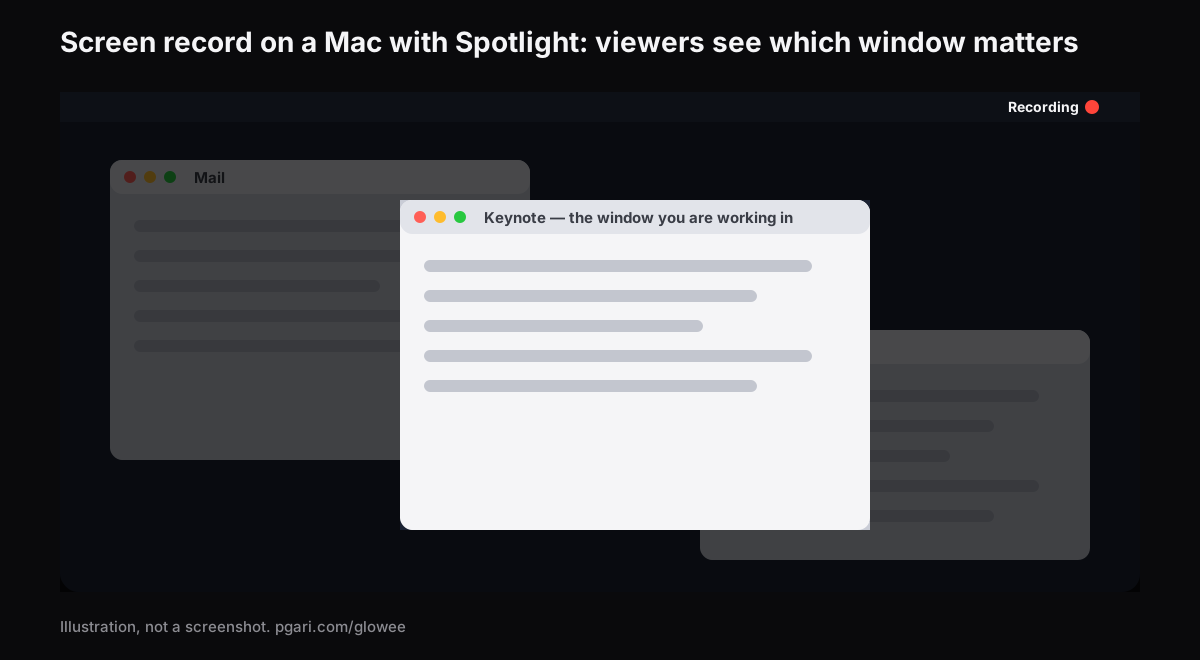
Short answer: To screen record on a Mac you need no software at all: press Shift-Command-5, pick Record Entire Screen or Record Selected Portion, and click Record. macOS does the recording with its own Screenshot app. The problem is what ends up in the file — a recording of the whole screen shows your notes, your chat and every other open window beside the one you are actually talking about. That second problem is where PGari Glowee comes in. Its Spotlight "dims everything except the window you are in," on any Mac display, and because the dimming is drawn on the screen it lands in the recording and in a shared screen alike. Glowee itself records nothing.
A word of warning about the name: Apple uses Spotlight for the search you open with Command–Space bar. What follows has nothing to do with that — it is a lighting effect for whoever is watching.
How to screen record on a Mac, step by step
These are Apple's own steps for the Screenshot app.
- Press Shift-Command-5. An onscreen toolbar appears.
- Choose what to record. Record Entire Screen or Record Selected Portion, whose borders you can drag to resize. macOS Tahoe 26 and later adds Record Selected Window.
- Open Options before you start. Choose a microphone to record your voice. Show Mouse Clicks puts a black circle around the pointer on every click. You can set a timer, choose where the file is saved — by default, the desktop — and on supported models choose SDR or HDR as the capture format.
- Click Record.
- Stop from the menu bar's Stop button, or with Command-Control-Esc.
You get a .mov whose filename starts with "Screen Recording" and carries the date and time. The thumbnail in the corner opens it for trimming straight away.
QuickTime Player is the other door to the same room: File > New Screen Recording, or Control-Command-N, which Apple's guide says opens the Screenshot tools.
Two limits to know before planning a tutorial. Apple warns that some apps — the Apple TV app among them — might not let you record their windows. And capturing the Mac's own system audio appears as an option only in macOS 27 Golden Gate and later.
Put a spotlight on the window you are explaining
A recorded lesson or a product walkthrough is almost always about one window: the spreadsheet, the editor, the browser tab. Everything else on the desktop is still in the frame, and the people watching have to guess.
Spotlight's job fits in one sentence: it "dims everything except the window you are in."
- Switch it on from the sun in the menu bar, or with ⌃ ⌥ ⌘ S from any app. The same chord switches it off, so it can go on and off mid-recording without opening a menu.
- Pick the strength: Off, Soft or Strong, "depending on how busy the screen is." It returns at the level you last used.
- The light follows your clicks. Going from the slides to the browser and back needs no re-aiming.
- Pin the window with Pinned if a stray click would otherwise move the light while you record.
- It works on any Mac display, XDR or not, built in or external — a MacBook Air included.
Spotlight is an on-screen layer, so a screenshot or a recording picks it up the way it picks up any window. Nothing has to be masked afterwards.
Record the screen or a portion, not a single window
Spotlight works on what is around the window, so it can only appear in a recording that includes those surroundings. Record the entire screen, or a selected portion wide enough to take in the dimmed area. A recording of the lit window alone will look exactly like a recording without Spotlight, which is the one mistake worth avoiding on the first take.
The brightness boost is not in the file
Glowee's other feature, Extra Brightness, lifts an XDR display past the macOS slider. That one is left out of captures: a recording made on a boosted screen looks normal to everyone who watches it. It is for your eyes and does nothing for your audience, and it needs an XDR or other EDR display such as a MacBook Pro 14-inch or 16-inch from 2021 or later. The MacBook Pro brightness guide covers that half. Spotlight is the half your viewers see.
In a meeting, a class or on a projector
The same thing applies live. Leave your slides in an ordinary window rather than full screen, share the screen, and switch Spotlight on. The notes, the chat and the desktop behind the window all step back, so the room watches the slide rather than your notifications. Teaching on a call with a screen full of windows, the document or the whiteboard stays lit and nobody has to ask which one you mean.
As with a recording, the effect lives in what surrounds the window, so share the screen and not a single window.
Two macOS features pair well with it. In System Settings → Notifications there is Show Notifications: when mirroring or sharing the display, and the example Apple gives for it is a presentation. And on a Mac with Apple silicon running macOS Sonoma 14 or later, Presenter Overlay "elevates your presence by including you on top of the screen that you're sharing when on a video call." Both are macOS, not Glowee.
Spotlight on a window, spotlight on the pointer
The word spotlight is shared by a whole shelf of Mac presenter apps, and each of them means something different by it. Below, each one describes itself in its own words, from its own site.
| Tool | What it does, in its own words |
|---|---|
| macOS Screenshot | Show Mouse Clicks shows "a black circle around your pointer when you click" |
| Mouseposé (Boinx) | "dims the screen and shines a spotlight on the area around the mouse pointer"; makes keystrokes visible; visualizes mouse clicks |
| Presentify | "Annotate your screen, highlight your cursor, and spotlight or zoom in on key areas" |
| Scribbble | "Draw over anything on your Mac screen"; its Spotlight will "Dim everything except a circle around your cursor"; Magnify to zoom |
| Screen Studio | "macOS screen recorder with automatic zoom and smooth animations"; "automatically zooms in on your cursor" |
| PGari Glowee | "Spotlight dims everything except the window you are in"; click another window and the light follows |
The dividing line is simple. Four of the six chase the cursor; Glowee lifts out a window, and highlights no pointer, draws nothing, zooms nowhere and records nothing. Viewers who need to follow one button or one line of code want a pointer or annotation tool. Viewers who need to stay with a window while you work inside it want a window spotlight. Plenty of people making tutorials end up owning one of each.
More on the window side: marking the active window and turning down the inactive ones.
Questions people ask
What is the shortcut to screen record on a Mac?
Shift-Command-5 brings up the Screenshot tools; choose what to record and click Record. Command-Control-Esc ends it. From QuickTime Player, Control-Command-N opens the same tools for a new screen recording.
Can I record my voice at the same time?
Yes. Open Options in the Screenshot toolbar and pick a microphone before clicking Record. The Mac's own system audio is a separate option, one Apple lists for macOS 27 Golden Gate and later.
Will Spotlight show in my screen recording or shared screen?
Yes. It is an on-screen layer, so a screenshot or a recording takes it in like any window. Extra Brightness goes the other way: "the plain brightness boost is left out of captures."
What does Spotlight do on a Mac?
Two different things share the name. Apple's Spotlight is the Mac's search, opened with Command–Space bar and described by Apple as "the fastest way to find anything on your Mac." Glowee's Spotlight is a dimming effect — the window you are in stays lit and everything else steps back.
How do I turn the spotlight effect off?
Press ⌃ ⌥ ⌘ S, or set Spotlight to Off in Glowee's menu. ⌃ ⌥ ⌘ G shuts Glowee down entirely, and quitting the app returns the display to normal.
Do I need a MacBook Pro for this?
No. Spotlight is plain dimming and runs on any display. It is Extra Brightness that requires an XDR or other EDR panel.
Is there a free way to try it?
Glowee works fully for seven days with no account and no card. After that it is a one-time purchase — one Mac, or three Macs on one key, with a 30-day refund.
Put it on your next recording
Glowee is a single menu bar app: under 2 MB, macOS 13 or later, one universal build for Apple silicon and Intel. Nothing is added to the system — no kernel extensions, no background helpers.
More Glowee guides
- An ADHD focus app on the Mac: where a screen tool actually fits
- Dim inactive windows on a Mac: what works and what macOS documents
- Focus on a window on a Mac when the rest must stay visible
- Three ways to highlight the active window on a Mac
- MacBook Pro brightness: what the slider keeps back
Sources
- support.apple.com/en-ca/102618
- support.apple.com/en-ca/guide/mac-help/mh26782/mac
- support.apple.com/en-ca/guide/quicktime-player/qtp97b08e666/mac
- support.apple.com/en-ca/105117
- support.apple.com/en-ca/guide/mac-help/mh40583/mac
- support.apple.com/en-ca/guide/mac-help/mchlp1008/mac
- boinx.com/mousepose
- presentifyapp.com
- scribbble.app
- screen.studio