 PGari Glowee: Mac brightness with window spotlight
Three ways to highlight the active window on a Mac
Short answer: macOS marks the active app in one place only — the menu bar, where its name appears in bold — and the Apple pages on app windows, Desktop & Dock, Accessibility → Display, Stage Manager and Mission Control describe no setting that outlines or dims the windows behind it. To highlight the active window on a Mac you add an app, and there are three approaches: dim everything else, flash an effect when the focus changes, or make the window itself brighter. PGari Glowee does the first and the third — Spotlight dims the surroundings on any display with ⌃ ⌥ ⌘ S, and on an XDR panel Boost Area lifts just that one window. It highlights a window. It does not highlight the pointer, show clicks or draw on the screen; the last section names what does.
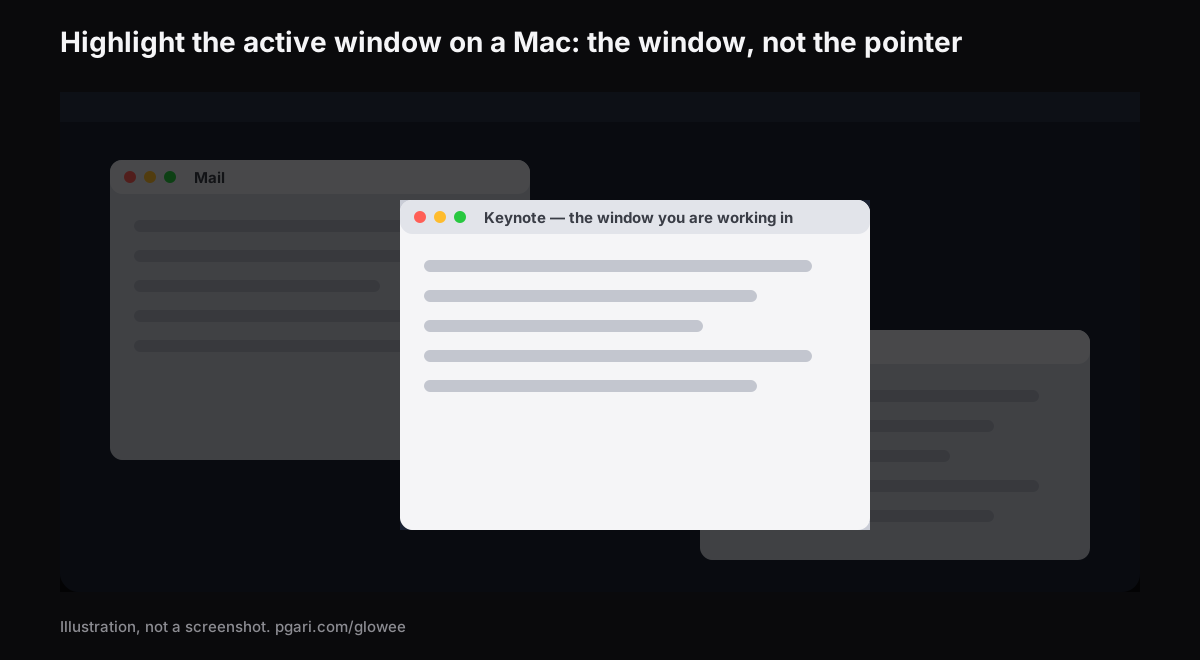
First, decide what should stand out
"Highlighter" means at least five different things to the people typing it, and the tools barely overlap.
| What should stand out | What does it |
|---|---|
| The window you are working in | PGari Glowee (Spotlight, Boost Area), HazeOver, Tinkle |
| The mouse pointer | macOS pointer settings; Presentify; Mouseposé |
| Mouse clicks | macOS Screenshot options (Shift-Command-5); Presentify; Mouseposé |
| Keystrokes | Mouseposé |
| Drawing and annotation on the screen | Presentify |
If your answer is anything but the first row, the last section of this page is the one you want; the rest is about windows.
What macOS gives you on its own
Apple documents one signal and several ways to find a window rather than mark one. The shortcuts below are from the Mac User Guide and the keyboard shortcut list for macOS 27.
- The menu bar. "Only one app at a time is active; the name of the app (in bold) and the app menus are shown in the menu bar."
- Mission Control. Control-Up Arrow arranges every open window "in a single layer so it's easy to spot the one you need." Control-Down Arrow shows the windows of the front app only.
- Cycling inside an app. Command-` steps to the next open window inside the front app; add Shift to step back.
- Increase contrast. System Settings → Accessibility → Display. It lifts the contrast of things like the borders around buttons or boxes. In the same panel, Show window title icons puts each window's icon in its title bar, which Apple says "can make it easier to distinguish among windows or tabs when you have several open."
- Stage Manager. System Settings → Desktop & Dock → Desktop & Stage Manager, to keep the app you are in "front and center."
- Hide the rest. Option-Command-H leaves the front app standing and hides everything else.
Every one of those finds, arranges or hides. None of them marks. That gap is what the three approaches below fill.
The three ways an app can highlight the active window on a Mac
One: dim everything else. The window you are in is left as it is and the rest of the screen is turned down. HazeOver describes itself exactly this way — it "automatically highlights the front window by dimming background windows," with intensity and animation speed you adjust, on macOS 12 Monterey or later. Glowee's Spotlight works on the same principle: everything except the window you are in is dimmed.
Two: flash an effect when the focus moves. Tinkle is "a macOS app that appends a visual effect at the focused window changes," and its own page says why that is useful: "It helps you if you often lose sight of the focused window especially the window is switched by keyboard shortcuts." It supports multiple displays and runs on macOS 13 Ventura or later. This is the only one of the three that marks the moment rather than the state.
Three: make the window brighter than the rest. This one needs an XDR or other EDR display, and it is what Glowee's Boost Area does. Set it to Active Window and only the window you are in gets the extra brightness; the desktop and every other window stay exactly as they were. With Spotlight running as well, the two halves pull in opposite directions at once — the window up, the surroundings down.
Glowee puts no border or outline around the window. If a coloured frame is what you pictured, this is not the tool.
How Glowee does it, step by step
Glowee is a sun in the menu bar, and everything it does is on one menu.
- Click the sun. Take Soft or Strong under Spotlight, whichever suits how busy the screen is.
- From then on, ⌃ ⌥ ⌘ S switches Spotlight from any app, and it returns at the level you last used.
- On an XDR or EDR display, pick Low, Medium or Max under Extra Brightness, and set Boost Area to Active Window so the light lands on the window you are in.
- ⌃ ⌥ ⌘ G switches Glowee off entirely, and back on.
Switch windows and the light goes too: with Active Window it lands on "the front window of the app you are using," and it moves with you.
| Feature | What it does to the window | Displays |
|---|---|---|
| Spotlight: Off, Soft, Strong | Dims everything except the window you are in | Any Mac display, built in or external |
| Boost Area: Active Window | Raises the brightness of the window you are in, and the light moves when you switch windows | XDR and EDR displays only |
| Boost Area: Pinned | Holds the extra brightness on the window that was in front when you chose it; windows you drag across it stay unlit | XDR and EDR displays only |
The brightness levels scale the display's gamma table by 1.20×, 1.38× and 1.50× at Low, Medium and Max, within the headroom the display has. A MacBook Air and other panels without EDR headroom cannot be boosted, and Spotlight works on them regardless. Running a display brighter uses more power and generates more heat, as raising the built-in slider does — the numbers behind all of this are in the MacBook Pro brightness guide.
The highlight survives a recording
Spotlight is a layer on the screen, so screenshots and screen recordings capture it like any window and there is nothing to mask in the edit. Anyone watching a class, a demo or a tutorial sees which window you mean. The brightness boost is the opposite: it is left out of captures, so a recording made on a boosted screen looks ordinary. More in Spotlight for screen recordings.
If you are sharing a screen, macOS can also hold notifications back while you do: System Settings → Notifications → Show Notifications: when mirroring or sharing the display. Apple's own example is a presentation.
If you wanted the pointer highlighted instead
Glowee does not do this. No ring around the pointer, no clicks, no keystrokes, no drawing tools. These do:
- macOS pointer settings. System Settings → Accessibility → Display → Pointer: pointer size, outline colour, fill colour, and Shake mouse pointer to locate, which makes the pointer grow when you move it quickly.
- macOS Screenshot. Shift-Command-5, then Options, to show the mouse pointer or the clicks. Apple points out that the options on offer are not the same for a screenshot as for a recording.
- Presentify describes itself as a way to "annotate your screen, highlight your cursor, and spotlight or zoom in on key areas."
- Mouseposé "dims the screen and shines a spotlight on the area around the mouse pointer," makes keystrokes visible and draws a red circle for mouse clicks.
The descriptions are each maker's own.
Highlight the active window on a Mac: the questions people ask
Is there an app that highlights which window is in focus?
Several, and they work differently. HazeOver and Glowee's Spotlight dim the background, Tinkle shows an effect at the moment the focused window changes, and on an XDR display Glowee can make the focused window brighter than everything else.
Border outline or background dimming?
Glowee only dims, plus the brightness lift on XDR panels; it draws no border. If you want an outline, Tinkle's effect is the closer idea of the two tools named here — read its own page before deciding.
Does it work with more than one monitor?
Spotlight covers every display you have, built in or external. The extra brightness is limited to EDR-capable panels, and Glowee lifts all of the connected ones together.
How do I see all the open windows on a Mac?
Control-Up Arrow for Mission Control, Control-Down Arrow for the windows of the front app, and Command-` to step through the front app's windows one by one.
How do I highlight the pointer on a Mac?
Not with Glowee. Size and colour live in System Settings → Accessibility → Display → Pointer; for a ring or a spotlight around the pointer itself, look at Presentify or Mouseposé.
Is Glowee's Spotlight the same as Spotlight on the Mac?
No. Apple's Spotlight is the Mac's search — Command–Space bar shows or hides the Spotlight search field. Glowee's Spotlight is a dimming feature that happens to share the name, and its chord is ⌃ ⌥ ⌘ S.
Can I try it first?
Yes. Glowee works fully for seven days with no account and no card. After that it is a one-time purchase — one Mac, or three Macs on one key, with a 30-day refund.
Put it on your own screen
Glowee is a single menu bar app: under 2 MB, macOS 13 or later, one universal build for Apple silicon and Intel. Nothing is added to the system — no kernel extensions, no background helpers — and quitting it hands the display straight back to macOS. Related: turning down the inactive windows and keeping a single window in focus.
More Glowee guides
- An ADHD focus app on the Mac: where a screen tool actually fits
- Dim inactive windows on a Mac: what works and what macOS documents
- Focus on a window on a Mac when the rest must stay visible
- MacBook Pro brightness: what the slider keeps back
- Screen record on a Mac: one window lit, the rest turned down
Sources
- support.apple.com/en-ca/guide/mac-help/mchlp2469/mac
- support.apple.com/en-ca/guide/mac-help/mh35798/mac
- support.apple.com/en-ca/102650
- support.apple.com/en-ca/guide/mac-help/unac089/mac
- support.apple.com/en-ca/guide/mac-help/mchlp2920/mac
- support.apple.com/en-ca/guide/mac-help/mh26782/mac
- support.apple.com/en-ca/guide/mac-help/mchl534ba392/mac
- support.apple.com/en-ca/guide/mac-help/mh40583/mac
- hazeover.com
- tinkle.pqrs.org
- presentifyapp.com
- boinx.com/mousepose