 PGari Glowee: Mac brightness with window spotlight
How to highlight the active window on a Mac
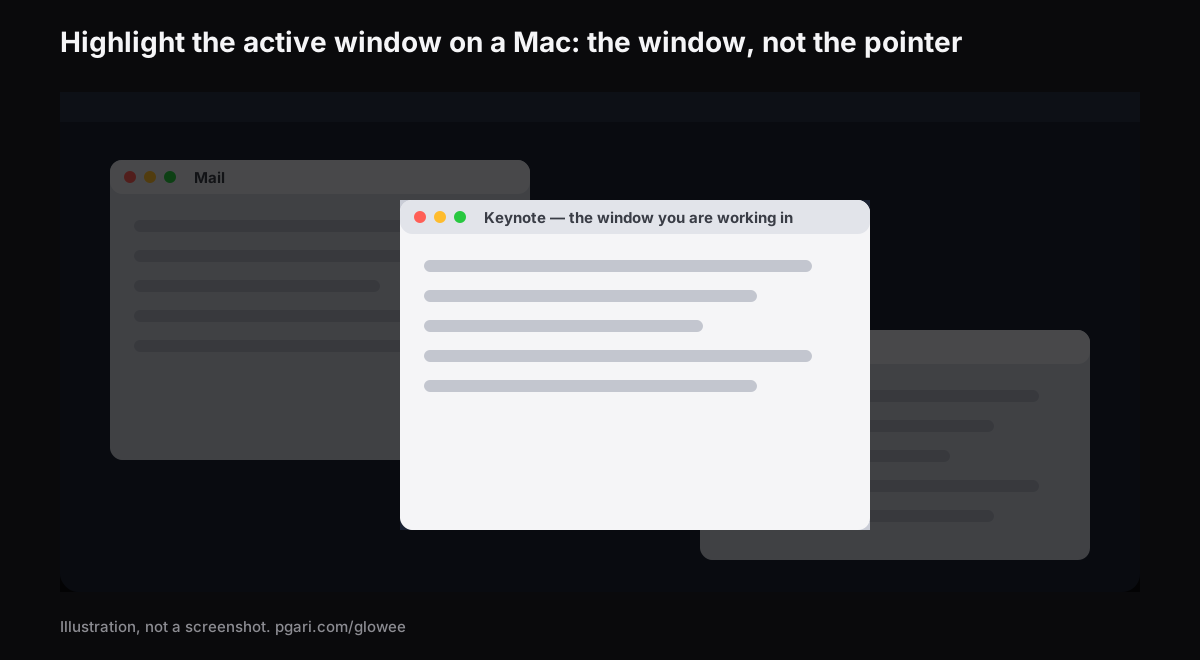
Short answer: If you want to highlight the active window on a Mac, know what macOS does by itself: it marks the active app in the menu bar, where its name appears in bold. Apple's Mac User Guide pages on app windows, Desktop & Dock settings and the Accessibility display settings describe no setting that dims or outlines the windows behind the active one. Apps do that. PGari Glowee's Spotlight dims everything except the window you are in, on any Mac display, and ⌃ ⌥ ⌘ S turns it on and off. On a MacBook Pro with an XDR display, Glowee can also make that one window brighter than the rest of the screen. Glowee highlights a window. It does not highlight the mouse pointer, show clicks or draw on the screen; if that is what you came for, the section on pointer tools below names what does.
Window or pointer: decide what should stand out
"Highlighter" means different things to different people searching, and the tools do not overlap much.
| What should stand out | What does it |
|---|---|
| The window you are working in | PGari Glowee (Spotlight, Boost Area), HazeOver, Tinkle |
| The mouse pointer | macOS pointer settings; Presentify; Mouseposé |
| Mouse clicks | macOS Screenshot options (Shift-Command-5); Presentify; Mouseposé |
| Keystrokes | Mouseposé |
| Drawing and annotation on the screen | Presentify |
What macOS itself gives you
Apple's user guide describes the basic signal: only one app at a time is active, and its name, in bold, and its menus are shown in the menu bar. Beyond that, macOS helps you find a window more than it marks one. The shortcuts and paths below are from Apple's Mac User Guide for macOS 27.
- Mission Control. Press Control-Up Arrow. All open windows are arranged in a single layer so it is easy to spot the one you need. Control-Down Arrow shows all windows of the front app.
- Cycle within an app. Command-` (the grave accent key) activates the next open window in the front app.
- Increase contrast. System Settings → Accessibility → Display. It increases the contrast of items such as borders around buttons or boxes. In the same place, Show window title icons puts each window's icon in its title bar, which helps tell several windows apart.
- Stage Manager. System Settings → Desktop & Dock → Desktop & Stage Manager. It keeps the app you are working with front and center.
- Hide the others. Option-Command-H keeps the front app and hides every other app.
Apple's pages for these settings describe finding, arranging and hiding windows. None of them describes dimming or outlining the windows behind the active one. That is what window highlighters add.
Three ways an app can highlight the active window on a Mac
Dim the rest. The window you are in stays as it is and everything else is turned down. HazeOver describes itself this way: it "automatically highlights the front window by dimming background windows." Glowee's Spotlight works on the same principle: it dims everything except the window you are in.
Flash an effect when focus changes. Tinkle is "a macOS app that appends a visual effect at the focused window changes." The effect appears when you switch windows.
Make the window itself brighter. This needs an XDR or EDR display, and it is what Glowee's Boost Area does. With Boost Area set to Active Window, only the window you are in gets the extra brightness; the desktop and every other window stay exactly as they were. Pair it with Spotlight and the lit window gets brighter while the rest steps back.
Glowee does not draw a border or an outline around the window. If a border is what you want, it is not the tool.
How Glowee highlights a window
Glowee is a sun in the menu bar. Everything it does is on one menu.
- Click the sun. Under Spotlight, choose Soft or Strong, depending on how busy the screen is. There is no need to turn Glowee on first: choosing a Spotlight level turns it on if it was off.
- From then on, ⌃ ⌥ ⌘ S switches Spotlight on and off from any app, and it comes back at the level you last used.
- On an XDR or EDR display, the window you are in also gets the extra brightness. Pick Low, Medium or Max under Extra Brightness. Spotlight needs a window to light, so if Boost Area was set to Whole Screen, turning Spotlight on moves it to Active Window.
- ⌃ ⌥ ⌘ G turns Glowee off altogether, Spotlight included, and on again.
Click another window and the light follows. The highlighted window is the front window of the app you are using. The dimming layer sits above the menu bar and the Dock, so they are dimmed too wherever they lie outside that window.
| Feature | What it does to the window | Displays |
|---|---|---|
| Spotlight: Off, Soft, Strong | Dims everything except the window you are in | Any Mac display, built in or external |
| Boost Area: Active Window | Raises the brightness of the window you are in; the light moves when you click another window | XDR and EDR displays only |
| Boost Area: Pinned | Keeps the extra brightness on one window while you click around; windows you drag across it stay unlit | XDR and EDR displays only |
Spotlight follows the Boost Area choice. With Pinned, the pinned window is the one left undimmed, and that part works on any display.
The brightness levels scale the display's gamma table by 1.20×, 1.38× and 1.50× (Low, Medium, Max), within the headroom the display has. A MacBook Air and other displays without an XDR panel cannot be boosted; Spotlight works on them all the same. Running a display brighter uses more power and generates more heat, as raising the built-in brightness slider does. The details are in the MacBook Pro brightness guide.
The highlight shows up in recordings and shared screens
Spotlight is an on-screen layer, so screenshots and screen recordings capture it like any window, and there is nothing to mask in the edit. The people watching a presentation, a class or a tutorial see which window you mean. The brightness boost is different: it is left out of captures, so a recording of a boosted screen looks normal. More on this in Spotlight for screen recordings.
If you present from a shared screen, macOS can also hold notifications back: System Settings → Notifications → Show Notifications: when mirroring or sharing the display.
If you wanted the mouse pointer highlighted
Glowee does not do this. It draws no ring around the pointer, shows no clicks or keystrokes and has no drawing tools. These do:
- macOS pointer settings. System Settings → Accessibility → Display → Pointer. You can change the pointer size, its outline and fill colors, and turn on Shake mouse pointer to locate, which enlarges the pointer when you move it quickly.
- macOS Screenshot. Press Shift-Command-5, open Options, and choose to show the mouse pointer or clicks. Apple notes that the available options vary between screenshots and screen recordings.
- Presentify describes itself as an app to "annotate your screen, highlight your cursor, and spotlight or zoom in on key areas," with a ring or squircle around the cursor and click animations.
- Mouseposé "dims the screen and shines a spotlight on the area around the mouse pointer," and also visualizes mouse clicks and keystrokes.
The descriptions are taken from each maker's own site.
Questions people ask about highlighting windows on a Mac
Is there an app that highlights which window is in focus?
Yes, several. HazeOver and Glowee's Spotlight dim the background windows, Tinkle shows an effect when the focused window changes, and on an XDR display Glowee can make the focused window brighter than the rest.
Border outline or background dimming?
Glowee dims the background and, on XDR displays, brightens the window. It does not draw a border. Spotlight's dimming is captured in recordings and shared screens, so the people watching see it too.
How do I highlight the pointer on a Mac?
Not with Glowee. Use System Settings → Accessibility → Display → Pointer for size and color, or an app such as Presentify or Mouseposé for a ring or a spotlight around the pointer.
How do I see all the open windows on a Mac?
Press Control-Up Arrow for Mission Control, or Control-Down Arrow for the windows of the front app only.
Does it work with more than one monitor?
Spotlight works on any display, built in or external. With Spotlight on, every connected display is dimmed, and only the window you are in is left undimmed. The brightness boost needs EDR-capable displays, and Glowee lifts every connected one at the same time.
Is Glowee's Spotlight the same as Spotlight on the Mac?
No. Apple's Spotlight is the Mac's search: Command–Space bar shows or hides the Spotlight search field. Glowee's Spotlight is a dimming feature that shares the name, and its shortcut is ⌃ ⌥ ⌘ S.
Can I try it first?
Yes. Glowee is free for 7 days with every feature unlocked and no account. After that it is a one-time purchase — one Mac, or three Macs on one key, with a 30-day refund.
Try it on your own screen
PGari Glowee is one menu bar app, under 2 MB, for macOS 13 or later on Apple silicon and Intel. It installs no kernel extensions and no background helpers; quit it and the display returns to normal. Related: dimming inactive windows on a Mac and keeping one window in focus.
More Glowee guides
- An ADHD focus app for Mac: what a screen tool can and cannot do
- How to dim inactive windows on a Mac
- How to focus on a window on a Mac
- MacBook Pro brightness: how to get past the slider
- How to screen record on a Mac, with a spotlight on the window you are explaining
Sources
- support.apple.com/guide/mac-help/mchlp2469/mac
- support.apple.com/guide/mac-help/mh35798/mac
- support.apple.com/en-us/102650
- support.apple.com/guide/mac-help/unac089/mac
- support.apple.com/guide/mac-help/mchlp2920/mac
- support.apple.com/guide/mac-help/mh26782/mac
- support.apple.com/guide/mac-help/mchl534ba392/mac
- support.apple.com/guide/mac-help/mh40583/mac
- hazeover.com
- tinkle.pqrs.org
- presentifyapp.com
- boinx.com/mousepose