 PGari Glowee: Mac brightness with window spotlight
Highlight the active window on a Mac: dim the rest, or brighten the one
Short answer: macOS marks the active window in exactly one place — the menu bar, where the app's name appears in bold. Apple's own guidance says only that "only one app at a time is active." If you want to highlight the active window on a Mac more visibly than that, no setting will do it: Apple's pages on app windows, Desktop & Dock and Accessibility → Display describe finding, arranging and hiding windows, never dimming or outlining the ones behind. Apps fill the gap, in three different ways — dim the rest, flash an effect when the focus changes, or brighten the window itself. PGari Glowee does the first and the third: ⌃ ⌥ ⌘ S dims everything except the window you are in, on any display, and on an XDR panel that window can also be lifted past the brightness slider. Glowee highlights a window. It does nothing to the pointer.
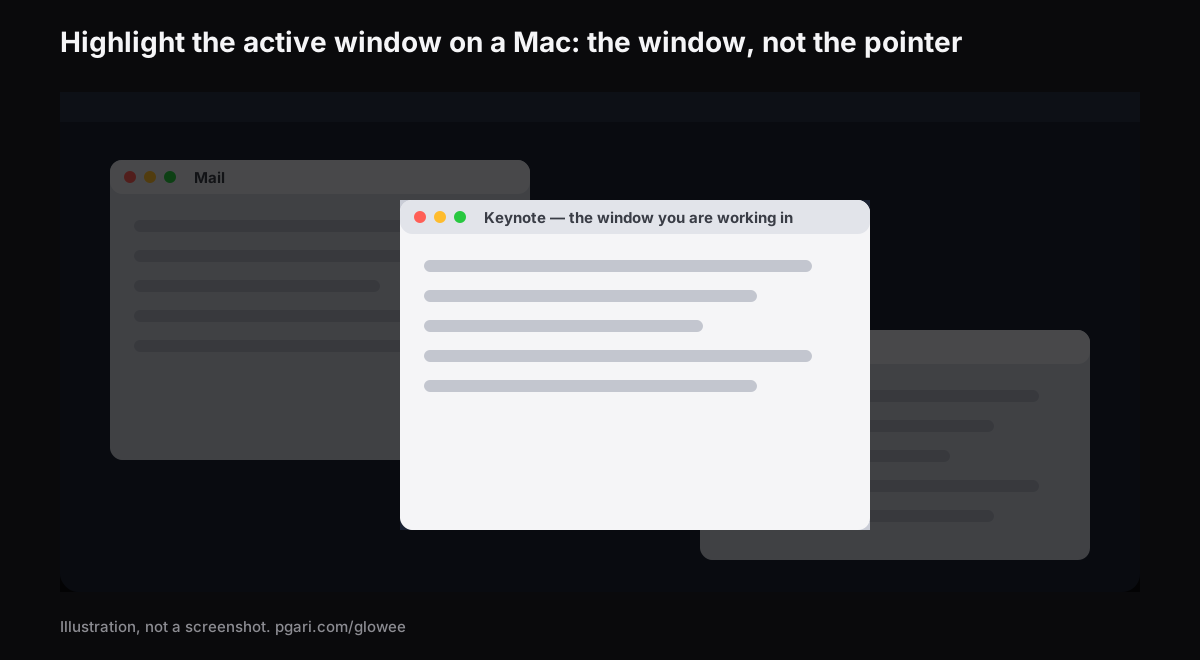
First: is it the window or the pointer you want marked?
These two searches sit close together and the tools barely overlap. Sort it out before you install anything.
| What should stand out | What does it |
|---|---|
| The window you are working in | PGari Glowee (Spotlight, Boost Area), HazeOver, Tinkle |
| The mouse pointer | macOS pointer settings; Presentify; Mouseposé |
| Where you clicked | macOS Screenshot options (Shift-Command-5); Presentify; Mouseposé |
| What you typed | Mouseposé |
| Drawing over the screen | Presentify |
What macOS gives you unaided
The built-in tools help you find a window rather than mark one. The shortcuts below are from Apple's UK Mac User Guide.
- Mission Control. Control-Up Arrow. Every open window is "arranged in a single layer so it's easy to spot the one you need." Control-Down Arrow narrows that to the front app's windows.
- Cycle within an app. Command-` activates the next open window in the app you are in.
- Increase contrast. System Settings → Accessibility → Display raises the contrast of items such as borders around buttons or boxes, "without changing the contrast of the screen itself." In the same list, Show window title icons puts each window's icon in its title bar, which Apple notes "can make it easier to distinguish among windows or tabs when you have several open."
- Stage Manager. Switched on at System Settings → Desktop & Dock → Desktop & Stage Manager, it holds the current app front and centre.
- Hide the rest. Option-Command-H leaves the front app on screen and puts every other one away.
Useful, all of it — and none of it is a highlight. Nothing in those lists shades or outlines the windows sitting behind the one you are using.
Three ways an app can highlight the active window on a Mac
Dim everything else. The window you are in is left alone and the rest of the screen is turned down. HazeOver puts it plainly: it "automatically highlights the front window by dimming background windows." Glowee's Spotlight works the same way, with three fixed settings instead of a slider.
Flash something when the focus moves. Tinkle is "a macOS app that appends a visual effect at the focused window changes," and says it helps if you "often lose sight of the focused window especially the window is switched by keyboard shortcuts." The effect is momentary; between switches the screen looks normal.
Brighten the window itself. This third route wants an XDR or other EDR display, and it is what Glowee's Boost Area is for. Choose Active Window and the extra light lands on that window alone — the desktop and the rest of your windows carry on unchanged. Put Spotlight on top and the lit window rises while its surroundings sink.
Glowee draws no border and no outline. If a coloured frame around the active window is specifically what you want, this is not the app.
How Glowee does it
Glowee puts a sun in the menu bar, and that one menu is the whole interface.
- Click the sun and pick Soft or Strong under Spotlight, according to how busy the screen is. Glowee need not be switched on beforehand — choosing a level does that for you.
- From then on, ⌃ ⌥ ⌘ S turns Spotlight on and off without leaving whatever app you are in, and it comes back at the depth you last chose.
- On an XDR or EDR display, add Low, Medium or Max under Extra Brightness and the window you are in is raised as well.
- ⌃ ⌥ ⌘ G takes Glowee out altogether, Spotlight with it, and brings it back.
Move to a different window and the light moves with you: what gets highlighted is the front window of whichever app you are using.
| Feature | What it does | Displays |
|---|---|---|
| Spotlight: Off, Soft, Strong | Dims everything except the window you are in | Any Mac display, built in or external |
| Boost Area: Active Window | Brightens the window you are in; the light moves when you click another window | XDR and EDR displays only |
| Boost Area: Pinned | Holds the extra brightness on one window while you click around; windows dragged across it stay unlit | XDR and EDR displays only |
The three Extra Brightness levels multiply the display's gamma table by 1.20×, 1.38× and 1.50× at Low, Medium and Max, inside whatever headroom the panel has spare. Nothing without an XDR panel — a MacBook Air, an ordinary external monitor — can be raised at all, though Spotlight runs on them just the same, because plain shading asks nothing of the hardware. Glowee's terms note that running a display brighter "uses more power and generates more heat, exactly as raising the built-in brightness slider does." The figures sit in the MacBook Pro brightness guide.
The highlight survives a recording
Because the shading is an on-screen layer, a screenshot or a screen recording picks it up exactly as it picks up a window, and there is no masking to do afterwards. Anyone watching a demo, a lesson or a walkthrough can see which window you mean. Extra Brightness behaves the other way round: captures leave it out, so footage shot on a lifted screen plays back looking entirely ordinary. That side of it is set out under Spotlight for screen recordings.
Presenting from a shared screen, macOS can also hold the interruptions back: System Settings → Notifications → Show Notifications: when mirroring or sharing the display.
If it was the pointer you wanted highlighted
Glowee does nothing here. No ring, no click markers, no drawing tools. These do:
- macOS pointer settings. Under System Settings → Accessibility → Display → Pointer you get size, outline colour and fill colour, plus Shake mouse pointer to locate, which makes the pointer grow when you shake it.
- macOS Screenshot. Shift-Command-5, then Options — Apple notes that the choices "vary based on whether you're taking a screenshot or a screen recording," and Show Mouse Pointer is ticked from that menu.
- Presentify, which offers to "annotate your screen, highlight your cursor, and spotlight or zoom in on key areas," including "a stylish ring or squircle around your cursor."
- Mouseposé, which "dims the screen and shines a spotlight on the area around the mouse pointer," and can also make keystrokes and mouse clicks visible.
Every description above is in the maker's own words, from the maker's own site.
Questions people ask
Is there an app that highlights which window is in focus?
Several. HazeOver and Glowee's Spotlight dim the background windows, Tinkle shows a brief effect when the focused window changes, and on an XDR panel Glowee can make the focused window brighter than everything else.
Border outline or background dimming?
Dimming, with brightening on top where the panel allows it. Glowee shades the background and, on an XDR display, lifts the window; it never draws a border. The shading is captured in recordings and on a shared screen, so an audience sees it as well as you do.
How do I highlight the pointer on a Mac?
Not with Glowee. Use System Settings → Accessibility → Display → Pointer for size and colour, or an app such as Presentify or Mouseposé for a ring or a spotlight that tracks the pointer.
How do I see all the open windows on a Mac?
Control-Up Arrow for Mission Control, or Control-Down Arrow for the front app's windows only.
Does it work with more than one monitor?
The shading does, on every display you have, built in or external. The extra brightness is limited to EDR-capable panels — where you have several, Glowee raises all of them together.
Is Glowee's Spotlight the same as Spotlight on the Mac?
It is not, and the shared name is a nuisance. Apple's Spotlight is the search field you open with Command-Space bar. Glowee's is a shading feature you reach with ⌃ ⌥ ⌘ S.
Can I try it first?
Yes. Glowee runs in full for 7 days: every feature, nothing locked, no account. After that it is a one-off purchase — one Mac, or three Macs on one key — and you have 30 days to ask for your money back.
Try it on your own screen
PGari Glowee is a single menu bar app of under 2 MB, for macOS 13 or later, universal across Apple silicon and Intel. Nothing goes into the system — no kernel extensions, no background helpers — and quitting it puts the display straight back. Take the trial, switch Spotlight on with a normal working desktop in front of you, and you will know within a minute whether this is the way you want to highlight the active window on a Mac. Nearby: turning down the windows you are not using and keeping one window in focus.
More Glowee guides
- An ADHD focus app for the Mac: a screen tool, and nothing more
- Dim inactive windows on a Mac: what macOS gives you and what an app adds
- Focus on a window on a Mac: what Focus mode does, and what it leaves alone
- MacBook Pro brightness: where the slider stops and the panel carries on
- Screen record on a Mac, and make it obvious which window you mean
Sources
- support.apple.com/en-gb/guide/mac-help/mchlp2469/mac
- support.apple.com/en-gb/guide/mac-help/mh35798/mac
- support.apple.com/en-gb/102650
- support.apple.com/en-gb/guide/mac-help/unac089/mac
- support.apple.com/en-gb/guide/mac-help/mchlp2920/mac
- support.apple.com/en-gb/guide/mac-help/mh26782/mac
- support.apple.com/en-gb/guide/mac-help/mchl534ba392/mac
- support.apple.com/en-gb/guide/mac-help/mh40583/mac
- hazeover.com
- tinkle.pqrs.org
- presentifyapp.com
- boinx.com/mousepose/