 PGari Glowee: Mac brightness with window spotlight
Highlight the active window on a Mac by dimming, flashing or adding light
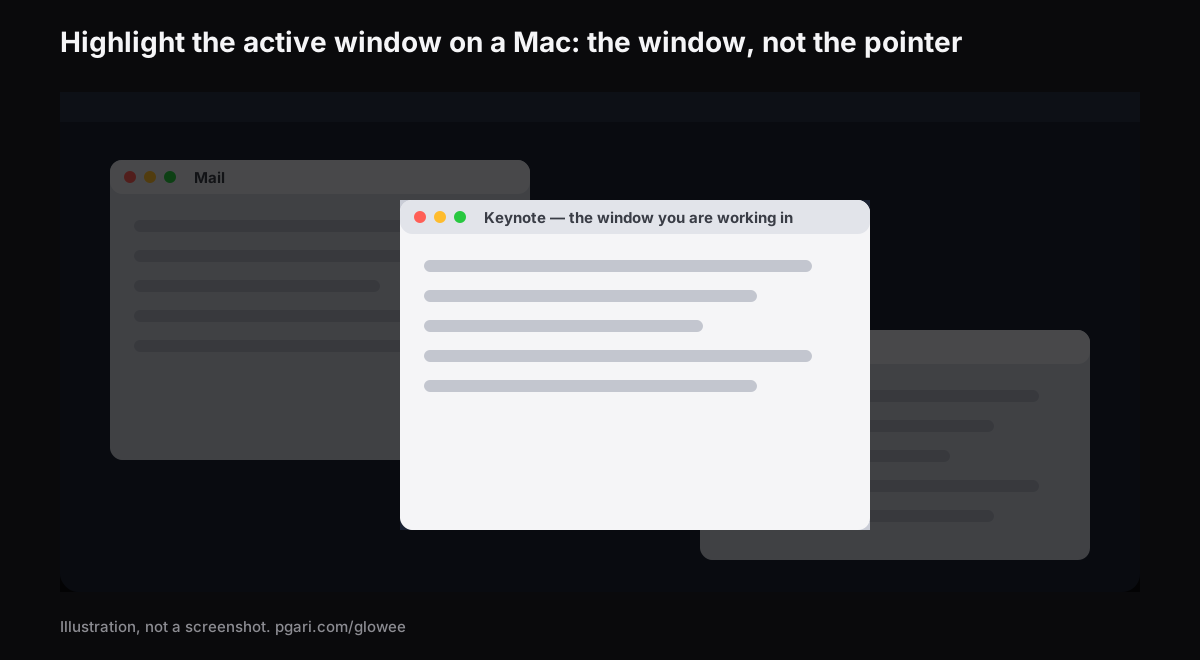
Short answer: macOS marks the active app, not the active window — the app's name appears in bold in the menu bar, and that is as far as Apple takes it. I read the full settings tables for Accessibility → Display and the guide pages on arranging windows and Mission Control: none of them contains an option that dims, outlines or otherwise marks the windows sitting behind the one you are using. Apps supply that. To highlight the active window on a Mac, PGari Glowee's Spotlight dims everything except the window you are in, on any display, switched with ⌃ ⌥ ⌘ S; on a MacBook Pro with an XDR panel it can also make that window brighter than its surroundings. What Glowee will not do is mark the mouse pointer, draw on the screen or show your clicks. If that was the goal, the pointer section below names the tools that do.
Window or pointer? The two searches are not the same
"Highlighter" carries two meanings here and the tools barely overlap, because wanting to highlight the active window on a Mac and wanting to mark the pointer are answered by quite different software. Settle this before you install anything.
| What you want marked | What does it |
|---|---|
| The window you are typing in | PGari Glowee (Spotlight, Boost Area), HazeOver, Tinkle |
| The mouse pointer | macOS pointer settings; Presentify; Mouseposé |
| Mouse clicks | macOS Screenshot options (Shift-Command-5); Presentify; Mouseposé |
| Keystrokes | Mouseposé |
| Drawing and annotation over the screen | Presentify |
macOS marks the app, not the window
Apple's guide gives the rule in one line: "Only one app at a time is active; the name of the app (in bold) and the app menus are shown in the menu bar." Everything else macOS offers is about finding a window rather than making one stand out.
- Mission Control. Control-Up Arrow. Apple's description is that it "shows all the windows open on the desktop, arranged in a single layer so it's easy to spot the one you need". Control-Down Arrow narrows that to the front app's own windows.
- Cycle inside one app. Command-Grave accent (`) activates the next open window in the front app.
- Increase contrast. Found under System Settings → Accessibility → Display, it raises the contrast of items such as borders around buttons or boxes, without changing the contrast of the screen itself.
- Window title icons. Show window title icons, in that same panel, draws each window's own icon into its title bar. Apple's reason for it: the icon "can make it easier to distinguish among windows or tabs when you have several open".
- Stage Manager. System Settings → Desktop & Dock → Desktop & Stage Manager, to keep the current app "front and centre".
- Hide the rest. Option-Command-H keeps the front app on screen and hides all the others.
Useful, all of it — and none of it puts a visible marker on the window you are in. That gap is what the apps below fill.
Three mechanisms that highlight the active window on a Mac
Turn the surroundings down. Your window is left as it is and everything else is dimmed. HazeOver states it plainly: it "automatically highlights the front window by dimming background windows", with the intensity and animation speed under your control, on macOS 12 Monterey or later. Glowee's Spotlight uses the same principle from a fixed three-position menu.
Flash a cue when the focus moves. Tinkle describes itself as "a macOS app that appends a visual effect at the focused window changes", built for people who "often lose sight of the focused window especially the window is switched by keyboard shortcuts". Multiple displays are fully supported, and it wants macOS 13 Ventura or later. Nothing is dimmed at all; you simply get a cue at the instant of the switch.
Add light to the window itself. This one requires an XDR or EDR panel and is what Glowee's Boost Area does. Put Boost Area on Active Window and only your current window is pushed past where the macOS brightness slider stops; the desktop and every other window are left untouched. Run Spotlight alongside it and the lit window rises while everything around it drops.
No border is drawn. Glowee puts no outline, ring or coloured frame around anything, so if an outline is specifically what you are after, this is the wrong tool and Tinkle's effect is the closer fit.
Setting it up, from the menu to the chord
Glowee is a sun in the menu bar, and the whole app is the menu beneath it. Four steps, and you can highlight the active window on a Mac from then on with one chord.
- Click the sun. Under Spotlight, choose Soft or Strong according to how busy the screen is. Whether Glowee itself is already running does not matter: choosing a level brings it up.
- From then on, ⌃ ⌥ ⌘ S flips Spotlight from inside any app, and it returns at the level you last used.
- On an XDR or EDR display, pick Low, Medium or Max under Extra Brightness to add light to the window as well. Because Spotlight has to have a window to light, Boost Area shifts from Whole Screen to Active Window on its own.
- ⌃ ⌥ ⌘ G switches the whole app off, Spotlight included, and back on again.
The light moves as soon as you click into another window. The lit window is the front window of whichever app you are using — you choose it by clicking, and Glowee keeps up.
| Feature | What it does to the window | Which displays |
|---|---|---|
| Spotlight: Off, Soft, Strong | Dims everything except the window you are in | Any Mac display, built in or external |
| Boost Area: Active Window | Adds light to the window you are in; the light moves when you click elsewhere | XDR and EDR displays only |
| Boost Area: Pinned | Holds the light on one window while you click around; windows dragged across it stay unlit | XDR and EDR displays only |
Low, Medium and Max scale the display's gamma table by 1.20×, 1.38× and 1.50×, always inside whatever headroom the panel happens to have. A MacBook Air, and any display without an XDR panel, cannot be lifted at all — Spotlight still works there, because dimming asks nothing of the hardware. Running a display brighter also uses more power and generates more heat, exactly as raising the built-in slider does. The MacBook Pro brightness guide covers that side properly.
Your audience sees the same thing you do
Spotlight is drawn on the screen, so screenshots and screen recordings capture it like any other window and there is nothing to mask in the edit afterwards. Whoever is watching your demo, your lecture or your walkthrough can tell which window you mean without being told. Extra Brightness goes the other way about it: captures leave it out, and a recording made on a boosted panel looks like any other recording. That is worked through in Spotlight for screen recordings.
Sharing a screen live? macOS can hold the banners back while you do, through Show Notifications: when mirroring or sharing the display in System Settings → Notifications.
Pointer tools, which are a different category entirely
Glowee has nothing to offer here. It draws no ring around the cursor, shows no clicks or keystrokes, and has no annotation tools. These do:
- macOS pointer settings, at System Settings → Accessibility → Display → Pointer, where you change the pointer's size, its outline and fill colours, and switch on Shake mouse pointer to locate, which Apple describes as making "the pointer larger when you quickly move your finger on the trackpad or quickly move the mouse".
- macOS Screenshot. Shift-Command-5, then the Options menu, where Show Mouse Pointer and the click option live. Which options you are offered depends on whether you are taking a still or a recording, as Apple's guide points out.
- Presentify offers to "annotate your screen, highlight your cursor, and spotlight or zoom in on key areas", including "a stylish ring or squircle around your cursor".
- Mouseposé "dims the screen and shines a spotlight on the area around the mouse pointer", and can also make keystrokes visible and highlight mouse clicks.
Each description is taken from that maker's own site.
Questions about marking one window out
Which apps can show me the window that is in focus?
Several, working in different ways. HazeOver and Glowee's Spotlight dim the background; Tinkle flashes an effect at the moment the focused window changes; and on an XDR display Glowee can make the current window brighter than everything around it.
Dim the background, or put a coloured border around the window?
Glowee only dims, and on XDR panels adds light. It draws no border of any kind. If a coloured outline is the effect you have in mind, look at a tool built to draw one — this is not it.
One monitor or several?
Spotlight works on any display, internal or external, and needs no particular panel. For the brightness half, every connected EDR display is lifted together, so a Pro Display XDR alongside a MacBook Pro rises with it.
Can I see all the open windows belonging to one app?
Press Control-Down Arrow. Control-Up Arrow gives you Mission Control and everything on the desktop instead.
Free utility or paid app?
The macOS features in this page — Mission Control, Command-`, Increase contrast, window title icons, Stage Manager, Option-Command-H — are all included with your Mac. Tinkle and HazeOver have their own terms. Glowee is free for 7 days with nothing locked, then a one-off purchase — one Mac, or three Macs on one key — with a 30-day refund.
So what does Spotlight actually do on a Mac?
Two different things carry that name. Apple's Spotlight is the search you open with Command-Space bar, which "helps you quickly find things on your computer". Glowee's Spotlight borrows the same word for a dimming feature, and it answers to ⌃ ⌥ ⌘ S.
Try it on the screen in front of you
PGari Glowee is a menu bar app and nothing more: under 2 MB on disk, macOS 13 or later, the same binary for Apple silicon and Intel. It puts no kernel extensions and no background helpers into your system, and the instant you quit, the display is back exactly as it was. Related: turning inactive windows down on a Mac and holding your attention on one window.
More Glowee guides
- Searching for an ADHD focus app on the Mac? Read what this one is
- Dim inactive windows on a Mac and leave the layout alone
- Focus on a window on a Mac when one word is doing three jobs
- MacBook Pro brightness: the headroom your panel keeps in reserve
- Screen record on a Mac, then put a spotlight on one window
Sources
- support.apple.com/en-nz/guide/mac-help/mchlp2469/mac
- support.apple.com/en-nz/guide/mac-help/mh35798/mac
- support.apple.com/en-nz/102650
- support.apple.com/en-nz/guide/mac-help/unac089/mac
- support.apple.com/en-nz/guide/mac-help/mchlp2920/mac
- support.apple.com/en-nz/guide/mac-help/mh26782/mac
- support.apple.com/en-nz/guide/mac-help/mchl534ba392/mac
- support.apple.com/en-nz/guide/mac-help/mh40583/mac
- support.apple.com/en-nz/guide/mac-help/mchlp1008/mac
- hazeover.com
- tinkle.pqrs.org
- presentifyapp.com
- boinx.com/mousepose