 PGari Glowee: Mac brightness with window spotlight
MacBook Pro brightness: the headroom your panel keeps in reserve
Short answer: MacBook Pro brightness is limited by a software ceiling, not by the glass. Apple's own New Zealand spec sheets rate the Liquid Retina XDR panel at 1,600 nits peak and 1,000 nits sustained across the full screen, and then rate ordinary content at 500 nits on the 2021 and early-2023 machines, 600 nits on the November 2023 models, and up to 1,000 nits outdoors on the M4 and M5 generation. Push the brightness keys until the slider stops and most of that panel is still being held back for HDR video. An app such as PGari Glowee unlocks part of it for spreadsheets, code and photographs — up to 1.5× the slider's ceiling, either everywhere or only inside the window you are typing in.
Work through the macOS settings first. Two or three of them explain most complaints about MacBook Pro brightness, they cost nothing, and they take about a minute each.
Five macOS settings that hold a screen below its own maximum
Before blaming the panel, rule out the software that is dimming it on purpose.
- The brightness keys. Apple's guide is blunt about it: "If the screen seems too light or too dark, you can adjust your display's brightness." Hold Option-Shift with a brightness key to move in smaller steps, and add Control to send that adjustment to an external display where the display supports it.
- Automatic brightness. System Settings → Displays → Automatically adjust brightness uses the ambient light sensor. It is the setting most likely to be fighting you in a dim room. Apple attaches a caveat that is worth a second's thought before you switch it off — "Turning off auto-brightness may affect battery life, energy consumption and long-term display performance."
- The battery setting. Under Additional Options in System Settings → Battery sits Slightly dim the display on battery. Unplug the Mac and the screen steps down without telling you.
- True Tone, and Night Shift after dark. True Tone "uses advanced multichannel sensors to adjust the colour and intensity of your display and Touch Bar to match the ambient light". Night Shift pushes the whole picture towards the warm end after dark, so "warmer colour temperatures show more yellow and less blue". Switch each off for a minute and judge the difference yourself.
- A cold panel. For a panel that is slow to reach full brightness, Apple offers one unglamorous suggestion — "Give the display time to warm up" — and it costs nothing to try.
Slider at the top, all five ruled out, screen still not bright enough? Then you have hit the ceiling macOS sets, and the panel underneath it has plenty left.
What Apple rates each MacBook Pro panel at
XDR exists to play HDR video, and HDR needs somewhere to put a highlight that is many times brighter than a page of white text. macOS reserves that range by capping ordinary content — SDR, in Apple's vocabulary — a long way below the panel's maximum.
| MacBook Pro 14″ and 16″ | Slider at maximum (SDR) | XDR sustained, full screen | XDR peak |
|---|---|---|---|
| 2021 and early 2023 | 500 nits | 1,000 nits | 1,600 nits |
| November 2023 | 600 nits | 1,000 nits | 1,600 nits |
| M4 and M5 (2024 onwards) | up to 1,000 nits outdoors | 1,000 nits | 1,600 nits |
Figures taken model by model from Apple's New Zealand technical specifications; the XDR columns describe HDR content only.
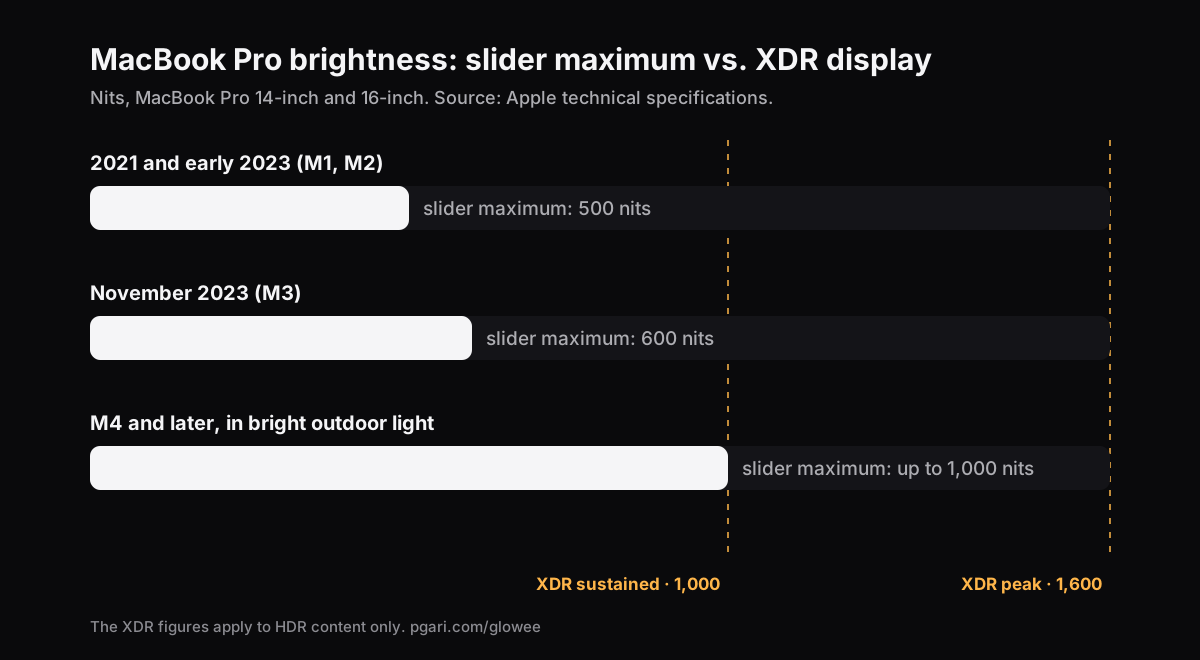
Look again at that first row. On a 2021 machine the slider hands you half of what the panel sustains and under a third of what it peaks at. That is the whole reason an HDR trailer looks extraordinary and the document beside it looks washed out, on the same screen, in the same second. The M4 and M5 rating of up to 1,000 nits is the exception, and Apple ties it specifically to outdoor use.
Reaching the rest of the range: a white layer, or the panel itself
macOS hands that reserve to apps as extended dynamic range — EDR. An app can hold the display in HDR mode and scale what is drawn on it. Two techniques do this, and they do not produce the same picture.
Painting a layer over the screen. Cheap to build, and you can see it: contrast flattens and colours go chalky, because you are reading through a sheet of white.
Asking the panel. The picture is left alone and the display is told to emit more light. This is Glowee's approach: it drives the XDR panel into HDR mode and scales the display's gamma table linearly, so every tone climbs by the same proportion. Its own page is explicit about the three things that do not happen: no tone-mapping change, no colour shift, no white layer on top. If you grade photographs or match a brand colour, that distinction is the only one that matters.
Three levels, each a fixed multiplier on the slider's ceiling, within whatever headroom the display has at that moment:
| Level | Gamma factor (slider maximum = 1.00) |
|---|---|
| Low | 1.20× |
| Medium | 1.38× |
| Max | 1.50× |
⌃ ⌥ ⌘ G switches the whole thing on and off from whatever app you happen to be in, or use the sun in the menu bar.
One window at a time, not the whole desktop
Lifting everything lifts the parts you are not reading as well. Boost Area is the setting that decides where the light lands —
- Whole Screen raises the entire display.
- Active Window raises only the window you are working in, and the light moves when you click somewhere else.
- Pinned nails the light to one window while you rummage around the rest of the desktop.
Reading a contract on a deck in February, Active Window is usually the better answer: the page you are actually looking at gets the panel's reserve, and nothing else changes.
When Night Shift or a sleep cycle undoes it
Night Shift, True Tone and waking from sleep can all reset a display's settings underneath you. Glowee's page describes what happens next: it "restores your level within two seconds", and after sleep it re-attaches to your displays at the level you left them on.
Which Macs have EDR headroom, and which have none at all
This is a question about the panel, never about the app.
Has headroom:
- MacBook Pro 14″ and 16″ from 2021 onwards, with the Liquid Retina XDR display
- Apple Pro Display XDR
- Other EDR-capable displays. Every connected EDR display is lifted together, so a Pro Display XDR next to the laptop rises with it.
Has none: the MacBook Air, and any Mac whose display is not an XDR or other EDR panel. On those machines the slider's maximum genuinely is the maximum, and software cannot invent photons. Painting a pale layer over the picture makes the picture paler and nothing else. What helps there is the settings list at the top of this page — and, if the real trouble is a cluttered screen rather than a dark one, turning the windows you are not using down, which needs no special panel at all.
Power, heat, and knowing when to switch it off
Pushing MacBook Pro brightness past the slider costs what more light has always cost. The Glowee terms put it plainly: "Running a display brighter uses more power and generates more heat, exactly as raising the built-in brightness slider does." Come back indoors and switch it off. That is precisely why the shortcut exists — one chord up, one chord down.
Worth knowing before you record or present anything — the brightness boost is deliberately left out of captures, so a screen recording made on a boosted display looks entirely ordinary to whoever watches it. If your goal is to show an audience where to look, you want the other feature — Spotlight, which dims everything around your window and is captured.
MacBook Pro brightness: what people ask most
Is this for seeing the screen outdoors, or for a brighter screen indoors?
Both, but the honest answer differs. Outdoors the limit is usually the panel's SDR rating, which is where the extra range helps most. Indoors, nine times out of ten it is automatic brightness or the battery setting, and those are free to fix.
I want it brighter than the default limit — is that possible, or is my screen just faulty?
If the slider moves and the picture changes, nothing is faulty; you have reached the ceiling macOS sets for ordinary content. On an XDR panel, an EDR app raises that ceiling by up to 1.5×. On a MacBook Air there is no ceiling above the slider to raise.
How do I turn auto-brightness off?
System Settings → Displays, then switch off Automatically adjust brightness. Apple notes that the option only appears on Macs with an ambient light sensor, and that turning it off "may affect battery life, energy consumption and long-term display performance".
Does this work on an external monitor, or only on the MacBook's own screen?
Both, if the external display is EDR-capable; Glowee lifts every connected EDR display at once. An ordinary monitor cannot be boosted, whatever it is plugged into.
Can I go the other way and make the screen dimmer than its minimum?
Not with this. Apple's page on changing your display's brightness covers the brightness keys, the slider and automatic brightness, and describes nothing below the slider's lowest step. Glowee only adds light to a window or a screen; it never takes any away from the panel.
Will the colours shift?
Not when the light is coming from the panel itself. The gamma table is scaled linearly and tone mapping is left untouched, so what changes is how much light comes out, not which colours come out.
Can I put it on my own Mac before paying?
Yes. Glowee runs free for 7 days with nothing locked and no account. After that it is a one-off purchase — one Mac, or three Macs on one key — with 30 days to change your mind.
Try it on your own panel
PGari Glowee is a menu bar app and nothing more: under 2 MB on disk, macOS 13 or later, the same binary for Apple silicon and Intel. It puts no kernel extensions and no background helpers into your system, and the instant you quit, the display is back exactly as it was.
More Glowee guides
- Searching for an ADHD focus app on the Mac? Read what this one is
- Dim inactive windows on a Mac and leave the layout alone
- Focus on a window on a Mac when one word is doing three jobs
- Highlight the active window on a Mac by dimming, flashing or adding light
- Screen record on a Mac, then put a spotlight on one window
Sources
- support.apple.com/en-nz/111902
- support.apple.com/en-nz/111340
- support.apple.com/en-nz/117735
- support.apple.com/en-nz/117737
- support.apple.com/en-nz/121552
- support.apple.com/en-nz/125405
- support.apple.com/en-nz/guide/mac-help/mchlp2704/mac
- support.apple.com/en-nz/102650
- support.apple.com/en-nz/guide/mac-help/mchlfc3b7879/mac
- support.apple.com/en-nz/102147
- support.apple.com/en-nz/102191