 PGari Glowee: Mac brightness with window spotlight
An ADHD focus app for the Mac: where a screen tool stops
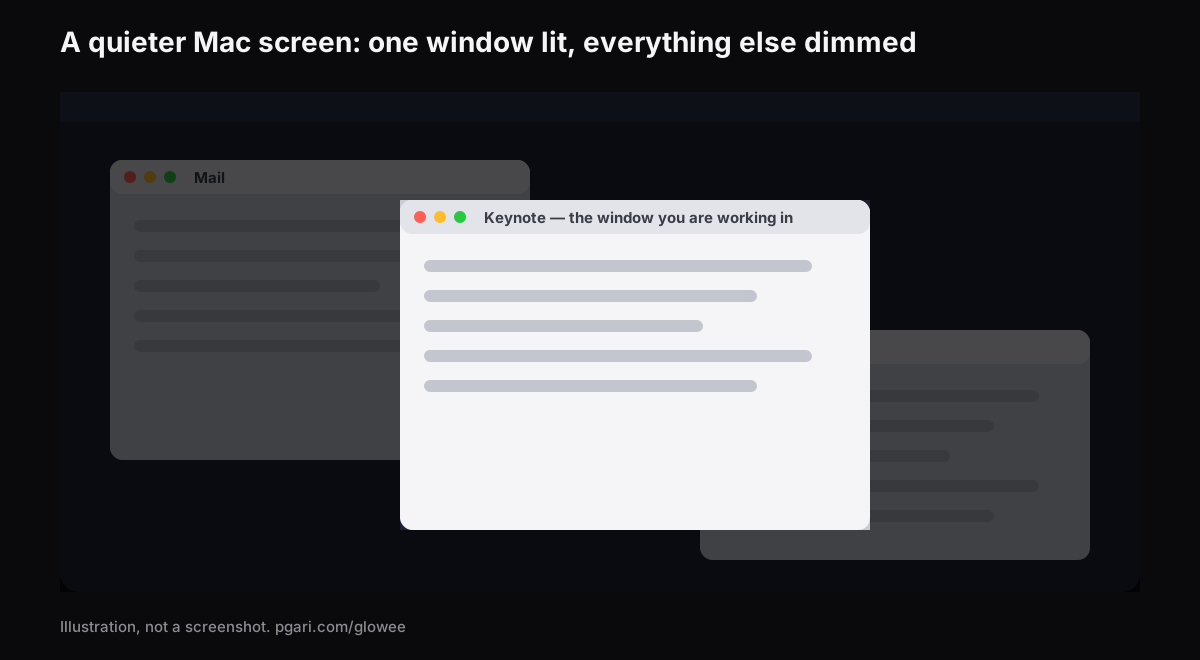
Short answer: if you are shopping for an ADHD focus app for the Mac, the honest description of this one comes first. PGari Glowee is a screen tool, nothing more, and it is not an ADHD aid. Its Spotlight feature turns down every part of the display apart from the window you are working in — on any Mac — and ⌃ ⌥ ⌘ S is the switch. That is the whole of its contribution to concentration. It runs no timer, blocks no website, plans no day, silences no notification, and makes no claim of any kind about ADHD, its symptoms or its treatment. If a crowded screen is the thing that keeps pulling at you, Glowee turns the crowd down — and macOS already ships with a long list of settings, mapped out below with their menu paths, that quiet a great deal more for nothing.
This page is written for someone who searched for an ADHD focus app for the Mac and wants to know what this particular one actually is before downloading anything.
The categories people mean by "ADHD focus app"
Search results for this phrase mix several unrelated kinds of software. Each description below is lifted from the maker's own site. The final row is added because it is the category Glowee belongs to.
| Kind of tool | Example | How its maker describes it |
|---|---|---|
| Website and app blocker | Freedom | "App, Website & Internet Blocker" |
| Focus timer | Forest | "A mindful focus timer" |
| Body doubling | Focusmate | "Virtual body doubling for getting anything done" |
| Visual planner | Tiimo | "Visual Planner for Every Neurotype" |
| Task management | Todoist | "A To-Do List to Organize Your Work & Life" |
| Small single-purpose tools | Goblin Tools | "a collection of small, simple, single-task tools, mostly designed to help neurodivergent people with tasks they find overwhelming or difficult" |
| Window dimmer | HazeOver | "This app automatically highlights the front window by dimming background windows" |
Glowee sits in that bottom row and nowhere else on the list. Which row is worth your money depends entirely on what gets in your way — and that is a conversation for you, and for any clinician or coach you work with. The sales page of any one app, this one included, is the wrong place to settle it.
What on a Mac screen competes with the window you are in
Set ADHD to one side for a paragraph and look only at the screen. While you work inside one window, the following things move, change or simply sit there in your field of view. Every one of them has a built-in macOS setting, and the paths below come from Apple's Singapore Mac User Guide as it stood on 19 September 2026.
| On the screen | The macOS setting | Where to find it |
|---|---|---|
| Notification banners | Any Focus, Do Not Disturb included | Control Centre → Focus; for Do Not Disturb alone, Option-click the date and time in the menu bar |
| An app that notifies too often | Allow notifications (off) | System Settings → Notifications → Application Notifications |
| Banners that will not go away by themselves | Alert Style: Temporary rather than Persistent | Same place |
| Number badges on Dock icons | Badge application icon (off) | Same place |
| Notification sounds | Play sound for notification (off) | Same place |
| A bouncing, crowded Dock | Automatically hide and show the Dock; Show suggested and recent apps in Dock (off); Animate opening applications (off) | System Settings → Desktop & Dock |
| The menu bar | Automatically hide and show the menu bar, with four choices: Always, On Desktop Only, In Full Screen Only, Never | System Settings → Menu Bar |
| Files spread across the desktop | Show Items: On Desktop (off) | System Settings → Desktop & Dock → Desktop & Stage Manager |
| Desktop widgets | Show Widgets: On Desktop (off) | System Settings → Desktop & Dock → Widgets |
| Interface animation | Reduce motion | System Settings → Accessibility → Motion |
| Animated GIFs looping in Messages and in Safari | Auto-play animated images | Same place |
| The blinking text cursor | Prefer non-blinking cursor | Same place |
| See-through backgrounds | Reduce transparency | System Settings → Accessibility → Display |
| All the furniture around a web article | Safari Reader | Smart Search field → Show Reader |
Three of those deserve a sentence more than a table row gives them.
A Focus can start itself. In System Settings → Focus, create one and give it a schedule. Apple's description of the setting is that it will "automatically turn on a Focus at a set time, location or while using a certain app". Nothing to remember, nothing to click when you sit down.
Full screen clears the deck. Green button, top-left corner of the window. Apple's phrase for what it buys you is working "without desktop distractions", because the app fills the entire screen.
Hide the rest without closing anything. Option-Command-H leaves the front app and hides every other one. Stage Manager does something related but continuous — Apple describes it as organising "apps and windows so that your desktop is clutter free and you can stay focused", with recent apps lined up along the left edge.
Safari Reader is worth a mention on its own. Apple describes it as showing an article "in one page, formatted for easy reading and presented without navigation or other distractions". For long reading, it removes more than any app you could buy.
Where Glowee comes in
Full screen and Option-Command-H both work by taking things away. That suits some tasks and ruins others. Working from a source document, checking a form against an email, keeping a reference open beside a draft — each of those needs two or three windows visible at the same time, and only one of them is the one you are actually in at any given moment.
That narrow case is what Spotlight is built for. It leaves the layout untouched and turns down everything that is not the window you are in.
- Three levels: Off, Soft and Strong. The product page's own advice is to choose by how busy the screen is.
- The light follows the click. Click into another window and it moves there.
- One shortcut. ⌃ ⌥ ⌘ S in any app switches Spotlight, and it returns at the level you last used.
- No need to start Glowee first. Choosing Soft or Strong starts the app if it was not running.
- One chord takes everything with it. ⌃ ⌥ ⌘ G switches Glowee off, Spotlight included, and switching it back on brings Spotlight back too.
- Any Mac display. Dimming needs no particular panel, so a MacBook Air or a borrowed office monitor works exactly the same.
- Nothing to configure. A sun in the menu bar and one menu under it. No window, no preferences pane.
On a MacBook Pro with a Liquid Retina XDR display, or another EDR display, Glowee can also raise the brightness of the single window you are in — Boost Area → Active Window — so the lit window climbs while everything else steps back. That half requires an XDR or EDR panel and cannot happen on a MacBook Air. Spotlight needs one window to light, so switching it on while Boost Area is set to Whole Screen moves Boost Area to Active Window; on an XDR or EDR display that window then picks up the extra brightness at the level you last chose. As Glowee's terms note, running a display brighter uses more power and generates more heat.
One thing to know before a video call: Spotlight is drawn on the screen, so it is captured in screen recordings and in a shared screen. Everyone watching sees the dimming too. Press ⌃ ⌥ ⌘ S beforehand if you would rather they did not — and if you would rather they did, that is the subject of Spotlight in screen recordings.
What Glowee does not do
- It blocks no website and no app.
- It silences no notification. A Focus is the tool for that.
- No timer, no task list and no planner are built into it.
- It is not a medical device, not a treatment and not an ADHD aid, and nothing on this page is medical advice.
Questions people ask about ADHD focus apps
Do ADHD apps actually work?
This page cannot answer that, and Glowee claims nothing about ADHD. What can be stated is what the software does: with Spotlight on, everything except your window is dimmed. Whether a quieter screen helps you is something the free trial lets you find out at no cost.
Are you struggling more with distractions, time blindness, or starting tasks?
Only the first of those three is a screen problem, and even then only when the distraction is on the screen you are already looking at. For the other two, look at the planner and timer rows in the table above. A dimmer has nothing useful to offer there, and pretending otherwise would be a sales pitch rather than an answer.
Does it remove the competing things, or just fade them?
It fades them. The other windows stay open, stay clickable and stay exactly where you put them, simply turned down to Soft or Strong. Removing them outright is a job for full screen or Option-Command-H.
Do you prefer a free built-in tool or a paid app?
Start with the free ones. Every setting in the table above ships with macOS — Focus, the Notifications panel, Reduce motion, the hidden Dock and menu bar, full screen, Stage Manager, Safari Reader — and none of them costs anything. Only after that is it worth asking whether the background windows still need turning down.
How do I make a Mac calmer to work on?
Work down the table from the top: silence notifications with a Focus, switch off badges and sounds for the apps that do not deserve them, hide the Dock, clear the desktop, reduce motion. Then judge whether the windows themselves are still shouting at each other.
Will Glowee do anything on a MacBook Air?
Spotlight will, on any Mac display it is given. The extra brightness does not — it needs an XDR or EDR panel.
Can I try it first, without paying?
Yes. Seven days, every feature open, no account and no card, exactly as the terms say. After that it is a one-off purchase — one Mac, or three Macs on one key — with 30 days in which to ask for a refund.
Try it on your own screen
PGari Glowee is one menu bar app of under 2 MB. It needs macOS 13 or later and runs as a single universal build on Apple silicon and on Intel. It puts nothing into the system — no kernel extension, no background helper — and the moment you quit it, the display is back where macOS had it. The same feature seen from other angles: dimming inactive windows, focusing on one window and marking out the active window.
More Glowee guides
- Dim inactive windows on a Mac without moving a single one
- How to focus on a window on a Mac when Focus mode is not the answer
- How to highlight the active window on a Mac — the window, not the pointer
- MacBook Pro brightness: the light your panel is holding back
- How to screen record on a Mac and put a spotlight on one window
Sources
- support.apple.com/en-sg/guide/mac-help/mchl613dc43f/mac
- support.apple.com/en-sg/guide/mac-help/mchlff5da36d/mac
- support.apple.com/en-sg/guide/mac-help/mchl999b7c1a/mac
- support.apple.com/en-sg/guide/mac-help/mh40583/mac
- support.apple.com/en-sg/guide/mac-help/mchlp1119/mac
- support.apple.com/en-sg/guide/mac-help/mchlad96d366/mac
- support.apple.com/en-sg/guide/mac-help/mchlc03f57a1/mac
- support.apple.com/en-sg/guide/mac-help/unac089/mac
- support.apple.com/en-sg/guide/mac-help/mchl9c21d2be/mac
- support.apple.com/en-sg/guide/mac-help/mchl534ba392/mac
- support.apple.com/en-sg/102650
- support.apple.com/en-sg/guide/safari/sfri32632/mac
- freedom.to
- forestapp.cc
- focusmate.com
- tiimoapp.com
- todoist.com
- goblin.tools/About
- hazeover.com