 PGari Glowee: Mac brightness with window spotlight
Dim inactive windows on a Mac without moving a single one
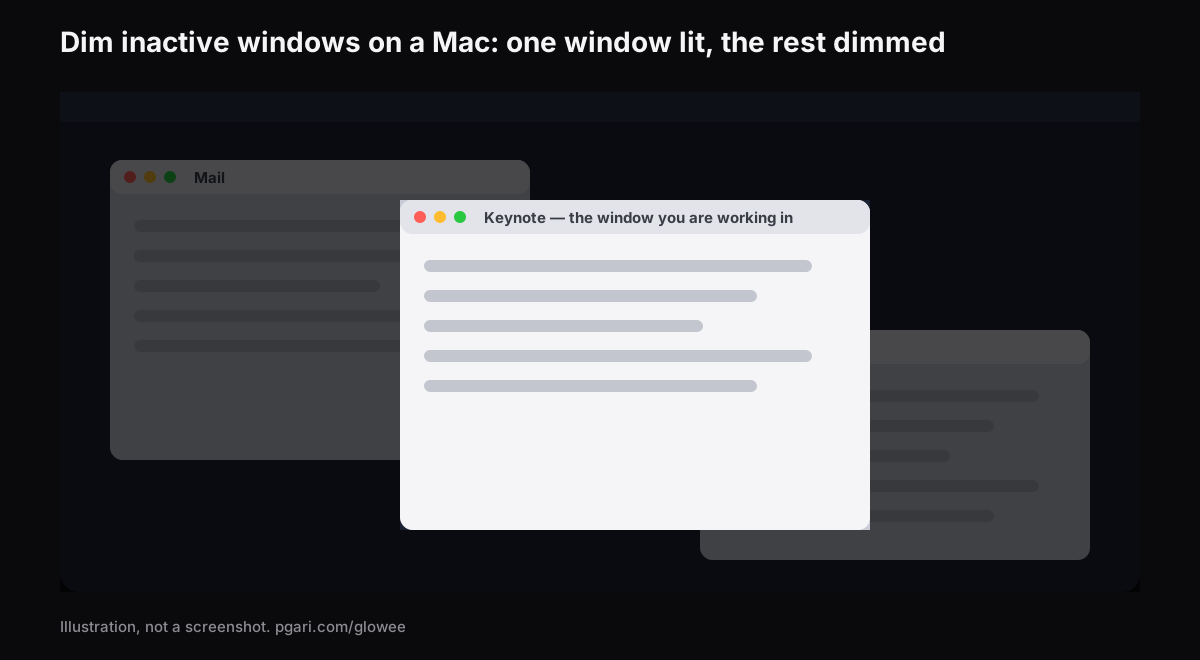
Short answer: nothing in Apple's own documentation will dim inactive windows on a Mac. The Desktop & Dock settings list and the Accessibility → Display settings list were both read end to end for this page, and neither contains such an option; the only "dim" in either is Dim widgets on desktop. What macOS offers instead is ways of getting the other windows out of sight: full screen fills the display with one app, Stage Manager parks your recent apps down the left-hand side, and Option-Command-H hides everything but the app in front. Two apps do the dimming itself. HazeOver, the one most people search for by name, "automatically highlights the front window by dimming background windows" and gives you dials for how much. PGari Glowee does it with a single setting called Spotlight — Off, Soft or Strong, switched with ⌃ ⌥ ⌘ S — on any Mac display, and it shows up in screenshots and screen recordings.
If you landed here with the opposite complaint — a Mac that dims itself while you read — skip to the last section, which lists the three settings Apple documents for it.
What macOS does with the windows you are not using
Everything Apple provides here works by relocating the other windows, not by turning them down.
- Full screen. The green button in a window's top-left corner, or Control-Command-F where the app supports it. Apple's wording: an app "fills the entire screen — so you can take advantage of every inch of the screen and work without desktop distractions". A second app can be added beside it in Split View.
- Stage Manager. Designed to "keep the app you're working with front and centre, and your desktop clutter-free", with recent apps "neatly arranged along the left side of the screen". It is turned on at System Settings → Desktop & Dock → Desktop & Stage Manager.
- Hiding the rest. The shortcut list carries one line for it: "To view the front app but hide all other apps, press Option-Command-H."
- The one signal that is always there. Apple notes that "only one app at a time is active; the name of the app (in bold) and the app menus are shown in the menu bar". A name in bold is a small thing to notice at the top of a busy screen.
All of that is the right answer on a day when one window really is all you need. It is the wrong answer the moment the other windows have to stay visible — the source document you are translating from, the group chat you keep half an eye on, the terminal sitting under the editor. Dimming leaves the layout untouched and simply lowers everything you are not currently typing into.
The two apps that dim inactive windows on a Mac
HazeOver
HazeOver is the name that gets typed into the search box. Its own description: it "automatically highlights the active window or app as you switch. Less important things gently fade into the background, helping you stay focused and productive." The site lists these controls:
- Dimming intensity and animation speed you set yourself — "a soft shade to guide your attention or a bold dark background for total immersion"
- A keyboard shortcut that toggles the shading, plus a gesture that changes its intensity
- Separate dimming settings for the Dark and the Light appearance
- The Fn key, to drop the dimming for a moment while dragging between apps
- The desktop uncovered automatically the moment you use it
- Control or automation by way of the Shortcuts app, Focus filters and AppleScript
- Support for multiple monitors
It requires macOS 12 Monterey or later. There is a free trial, and it is also sold through the Mac App Store and available on Setapp. The category name HazeOver gives itself, Distraction Dimmer™, is its own trademark.
PGari Glowee
Glowee sits in the menu bar, and the dimming half of it is called Spotlight. The product page puts it in one line: "Spotlight dims everything except the window you are in."
- Three positions on the menu: Off, Soft and Strong — pick by how crowded the screen is.
- ⌃ ⌥ ⌘ S works from inside whatever app you are using, and brings Spotlight back at the level you last chose.
- Click a different window and the light travels there.
- It needs no particular panel, so it runs on any Mac display, built in or plugged in.
- There is no preferences pane. One menu holds everything the app can do.
Side by side
| HazeOver | PGari Glowee (Spotlight) | |
|---|---|---|
| The idea | Highlights the front window by dimming the background windows | Turns everything down except the window you are in |
| Amount of dimming | Intensity and animation speed you adjust yourself | Three fixed steps on the menu: Off, Soft, Strong |
| Turning it on | A shortcut key; a gesture for intensity; Fn held down while dragging | ⌃ ⌥ ⌘ S, or the menu bar sun |
| Dark and Light appearance | Separate settings for each | One menu, nothing else to set |
| Automation | Shortcuts app, Focus filters, AppleScript | None — you switch it yourself |
| Displays | Multiple monitors supported | Every display, built in or plugged in |
| System requirement | macOS 12 Monterey or later | macOS 13 or later; Apple silicon and Intel in one build |
| Trial and licence | Free trial; sold on the Mac App Store; also on Setapp | Seven free days; then a one-off purchase — one Mac, or three Macs on one key; 30 days to get your money back |
Each column quotes the maker's own site and nothing else.
Want a shade you can tune, tint, or hand over to a Focus or a Shortcut? HazeOver's site lists a control for each. Want one switch and no setup at all? Then the Glowee column is the one to read. There is also a second thing Glowee does, and it only matters if your Mac has an XDR panel.
On an XDR display: darker outside the window, brighter inside it
Dimming darkens the surroundings. It does not add anything to the window you are reading. On a MacBook Pro 14″ or 16″ from 2021 onwards, a Pro Display XDR or another EDR display, Glowee can work from both ends at once. Put Boost Area on Active Window and the window you are in is pushed past the macOS slider's ceiling — a factor of 1.20, 1.38 or 1.50 at Low, Medium and Max, within whatever headroom the panel has spare. Add Spotlight on top and the lit window climbs while the rest steps back.
This half depends entirely on the panel. A MacBook Air and an ordinary external monitor cannot be boosted at all; Spotlight still works on them, because plain dimming asks nothing of the hardware. The reasons are in the MacBook Pro brightness guide.
Dimmed windows in recordings and on a shared screen
Spotlight is drawn on the screen, so a screenshot or a screen recording picks it up the same way it picks up any window. Present from an ordinary window, or record a walkthrough, and the people watching see precisely what you see: one window lit, the rest turned down, nothing to mask afterwards in the edit. The brightness boost behaves the other way round — it is left out of captures, so a recording made on a boosted screen looks perfectly ordinary.
More on that: Spotlight in screen recordings and marking out the window in front.
If you actually meant a Mac screen that dims when left alone
Most of the related questions Google attaches to this search are not about windows at all. They are about a display that fades or switches off while nobody touches the keyboard. Apple documents three settings for that.
- The display switches off too soon. Open System Settings → Lock Screen. Turn display off on battery when inactive and Turn display off on power adapter when inactive each take a duration — Apple describes them as choosing "how long your Mac can be inactive … before the screen saver starts". Choose a longer one.
- It is dimmer when unplugged. System Settings → Battery, under Additional Options, holds Slightly dim the display on battery: "Conserve energy by dimming the display when your Mac is not plugged in."
- Brightness moves by itself. On a Mac with an ambient light sensor, System Settings → Displays has Automatically adjust brightness. Apple's note before you switch it off: it "may affect battery life, energy consumption and long-term display performance".
Questions people ask
Is there an app that dims every window except the active one?
Two of them, at least. HazeOver dims the background windows with adjustable intensity and a set of automation hooks. PGari Glowee dims everything except the window you are in, with three fixed levels and the shortcut ⌃ ⌥ ⌘ S, and can additionally brighten that window on an XDR display.
Can macOS manage this on its own, with no app at all?
Not according to Apple's documentation. The Desktop & Dock settings list and the Accessibility → Display settings list contain no such option. What they do contain is full screen, Stage Manager and Option-Command-H, all of which move or hide the other windows rather than dimming them.
How do I stop a Mac from dimming so quickly?
Two places. In System Settings → Lock Screen, raise the two Turn display off … when inactive durations. Under Additional Options in System Settings → Battery, switch Slightly dim the display on battery off.
How do I get my Mac screen to stay on longer?
The same Lock Screen settings govern it: each one sets how long the Mac may sit idle before the screen saver starts. Note that they are set separately for battery and for mains power, so changing one does not change the other.
How do I stop a Mac adjusting its brightness automatically?
Open System Settings → Displays and switch Automatically adjust brightness off. The setting is only shown on Macs fitted with an ambient light sensor.
Does the dimming work on a MacBook Air, or on an external monitor?
Yes. Spotlight is plain dimming and asks nothing of the panel. Only the extra brightness requires an XDR or other EDR display.
Free, or paid?
The macOS settings above cost nothing and are worth trying first. Both dimming apps are paid, and both let you test before buying: HazeOver offers a free trial, and Glowee runs for seven days with everything unlocked.
How do I try Glowee without paying?
Download it and use it for seven days — every feature open, no account, no card. After that comes a one-off purchase — one Mac, or three Macs on one key — backed by 30 days in which to ask for a refund. If you also want to keep the other windows and just stop them shouting, that is the whole point of focusing on one window.
Try it on your own screen
PGari Glowee is one menu bar app of under 2 MB. It needs macOS 13 or later and runs as a single universal build on Apple silicon and on Intel. It puts nothing into the system — no kernel extension, no background helper — and the moment you quit it, the display is back where macOS had it.
More Glowee guides
- An ADHD focus app for the Mac: where a screen tool stops
- How to focus on a window on a Mac when Focus mode is not the answer
- How to highlight the active window on a Mac — the window, not the pointer
- MacBook Pro brightness: the light your panel is holding back
- How to screen record on a Mac and put a spotlight on one window
Sources
- hazeover.com
- support.apple.com/en-sg/guide/mac-help/mchl9c21d2be/mac
- support.apple.com/en-sg/guide/mac-help/mchl534ba392/mac
- support.apple.com/en-sg/102650
- support.apple.com/en-sg/guide/mac-help/mchlp1119/mac
- support.apple.com/en-sg/guide/mac-help/unac089/mac
- support.apple.com/en-sg/guide/mac-help/mchlp2469/mac
- support.apple.com/en-sg/guide/mac-help/mh11784/mac
- support.apple.com/en-sg/guide/mac-help/mchlfc3b7879/mac
- support.apple.com/en-sg/guide/mac-help/mchlp2704/mac