 PGari Glowee: Mac brightness with window spotlight
How to focus on a window on a Mac, and what Focus mode will not do
Short answer: Anyone trying to focus on a window on a Mac runs straight into one word doing two separate jobs. Apple's Focus — the thing in Control Centre that most people call Focus mode — is a set of rules about notifications. Apple's own description is that you use it "to pause and silence all notifications or allow only certain notifications." Run down Apple's complete list of Focus settings and you find allowed people, allowed apps, schedules, filters for Calendar, Mail, Messages and Safari, Focus status and sharing across devices. Nothing in it touches a window. For windows, macOS gives you full screen, Stage Manager and Option-Command-H, and all three work by taking the other windows away. When the other windows have to stay in sight, the remaining option is to turn them down: PGari Glowee's Spotlight dims everything except the window you are in, on any Mac screen, thrown with ⌃ ⌥ ⌘ S. Focus handles the interruptions, Spotlight handles the screen, and neither substitutes for the other.
Focus, in Apple's sense: notifications, not windows
Do Not Disturb is one Focus among many. Apple calls it "the Do Not Disturb Focus" and notes that it "is always available," sitting in the same list as Work, Gaming, Reading and anything you build yourself.
Throwing one. Click Control Centre in the menu bar, click anywhere in the Focus section, then click the Focus you want. Its icon becomes highlighted in the list and turns up in the menu bar. You can pick a duration — "For 1 hour" is Apple's example — and if you switch it on during something in your calendar, you can choose "Until the end of this event" instead. Do Not Disturb has a shortcut of its own: hold Option and click the date and time in the menu bar.
Switching it off. Same list, click the highlighted Focus again.
Setting a Focus up, and getting rid of one
System Settings → Focus. Click Add Focus and either take one Apple supplies, such as Gaming or Work, or click Custom, name it, give it a colour and an icon. Ten is the limit. Inside each one:
- Allowed People and Allowed Apps decide who still gets through.
- Set a Schedule turns the Focus on "at a set time, location or while using a certain app." The app trigger is the quiet winner: the Focus arrives when the app opens and leaves when you close it or move elsewhere.
- Focus Filters alter the behaviour of Calendar, Mail, Messages and Safari for as long as it runs.
- Delete Focus removes it again.
With Apple Intelligence on there is also the Reduce Interruptions Focus, "which shows you only the most important notifications."
Two settings sit outside the individual Focus and are worth knowing if you work across time zones. Share across devices keeps your Focus settings in step on every Apple device signed in to the same Apple Account — which is convenient until a Focus you started on your phone at 22:00 silences the Mac during a call with a team eight hours behind you. Focus status lets contacts who message you know that you have silenced notifications, without telling them which Focus you are using.
The window problem Focus was never meant to solve
Apple's Focus settings list, read end to end, is about notifications, schedules and four apps' behaviour. Not one entry dims, hides, resizes or rearranges a window. A Focus stops the banner. The window behind the banner is someone else's department, and macOS has three tools for it.
| Tool | How you throw it | What becomes of the other windows |
|---|---|---|
| A Focus (Do Not Disturb, Work, custom) | Control Centre → Focus | Untouched. Focus governs notifications, schedules and filters |
| Full screen | The green button top-left, or Control-Command-F where an app supports it | The app takes over the entire screen |
| Stage Manager | Control Centre, or System Settings → Desktop & Dock → Desktop & Stage Manager | Parked down the left side; the current window sits in the centre |
| Option-Command-H | The keyboard | Hidden outright — only the front app remains |
| Glowee's Spotlight | The chord ⌃ ⌥ ⌘ S, or the sun in the menu bar | Left exactly where they are, dimmed |
Rows one to four come from Apple's Mac User Guide and shortcut list; the last from pgari.com/glowee/.
Full screen is the most decisive and the least flexible. Apple describes it as working "without desktop distractions," and it earns that by filling the screen. The cost is your other windows. If you write from a source document, code against documentation, or keep a call open in one corner while you take notes in another, you need two or three windows visible and still want one of them to be obviously the live one. To focus on a window on a Mac without losing sight of the others, something has to turn the others down rather than move them.
Focus on a window on a Mac with one keyboard chord
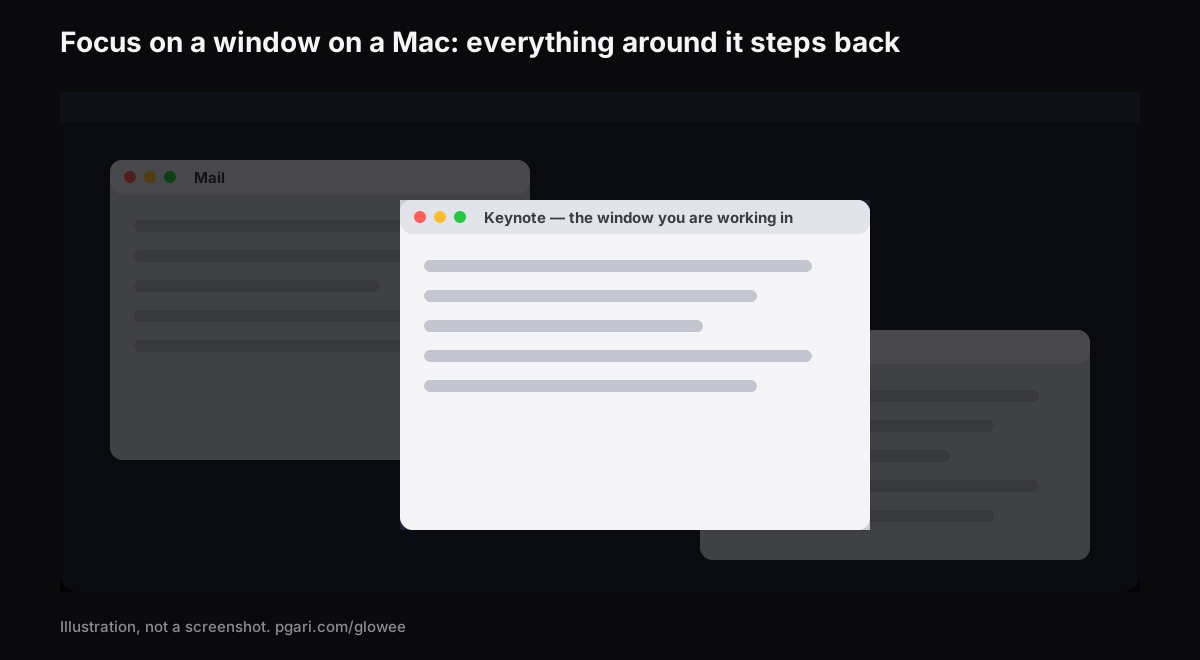
Glowee lives in the menu bar. Spotlight "dims everything except the window you are in," and your layout survives intact.
- Three states: Off, Soft and Strong. Soft or Strong depending on how busy the screen is.
- One chord: ⌃ ⌥ ⌘ S, from whichever app you are in; it returns at the level you last used.
- It follows the click. Click another window and the light follows. Glowee never decides which window is active — you do that, by clicking, and it keeps up.
- Every Mac screen. Spotlight is plain dimming, so it needs no particular panel. A MacBook Air is fine, so is a borrowed external monitor.
There are two behaviours worth knowing in advance. Choosing a Spotlight level starts Glowee if it was off and moves Boost Area from Whole Screen to Active Window, because Spotlight needs one window to light. And ⌃ ⌥ ⌘ G takes Spotlight with it when it switches Glowee off, then brings it back on the way in.
On a MacBook Pro 14″ or 16″ from 2021 onwards, or another XDR or EDR display, there is a second half to this. Set Boost Area to Active Window and only the window you are in gets the extra brightness, above where the macOS slider gives up. With Spotlight running as well, the live window rises while everything else steps back. That half needs an XDR panel and cannot happen on an Air; the MacBook Pro brightness guide explains why.
Glowee is not wired into Apple's Focus in any way. You throw Spotlight yourself, from the menu or the chord. It does not manage notifications, so a Focus is still what keeps the banners off.
The other dimmer, and its Focus hook
HazeOver is the name most people reach for. Its own description is that it "automatically highlights the front window by dimming background windows," with intensity you set, and it does connect to Apple's Focus: its site lists control and automation "with the Shortcuts app, Focus filters, and AppleScript." If having the dimming follow your Focus automatically is the point, that link exists there and not in Glowee. The two are set out side by side in how to dim inactive windows on a Mac.
Sorting out the word "focus app"
Search for a focus app for Mac and four unrelated categories come back. Knowing which one you want saves an afternoon.
- Blockers and timers. The app literally named Focus says it "blocks distractions and lets you create the perfect productivity routine," can block distracting apps, and ships with "built-in timers for productivity and the Pomodoro technique." Glowee is none of that — no blocking, no timer.
- Notification control. That is Apple's Focus, and it is already on the machine.
- Window dimmers. Glowee and HazeOver, which turn down what sits around the window you are using.
- Window arrangers. Full screen and Stage Manager, both part of macOS.
They do not compete. A blocker rules on what you may open, a Focus rules on what may interrupt you, an arranger decides where windows go, and a dimmer decides where the eye lands.
If ADHD is what brought you here, there is a separate page for that. Glowee makes no medical claim whatsoever. It dims what surrounds a window, and nothing on either page claims more.
Common questions about focusing on a window
What is Focus mode actually for on a Mac?
It silences notifications, or lets through only the ones you nominate. It can run to a schedule by time, place or app, change what Calendar, Mail, Messages and Safari show, and stay in step across your Apple devices. No part of it deals with windows.
Where do I switch a Focus on from, on a MacBook?
Control Centre in the menu bar → the Focus section → click a Focus such as Do Not Disturb. If you want to build one first, that is System Settings → Focus.
How do I turn Focus mode off on my Mac?
Open the same Focus section in Control Centre and click the highlighted one. For Do Not Disturb, Option-clicking the date and time works too. If it keeps reappearing, check Set a Schedule inside that Focus and then Share across devices — a Focus switched on from an iPhone arrives on the Mac as well.
Is Focus mode just Do Not Disturb under another name?
Do Not Disturb is one of the Focuses, and the one that is always there. Work, Personal, Gaming, Reading and anything custom sit beside it.
Should Focus mode be on or off?
On when you need the quiet, off when people need to reach you. Rather than deciding each time, give it a schedule — time, location, or the app you use for deep work.
Why does my active window on the Mac keep losing focus?
That is the third sense of the word: which window the keyboard is talking to. Apple's guide notes that "only one app at a time is active," and shows it by putting that app's name in bold in the menu bar. Apple's Focus pages have nothing to do with it and Glowee does not control it either — Glowee only follows the window you click. This page does not attempt to diagnose it.
Does dimming the other windows need an XDR display?
No. Spotlight works on any display, internal or external. Only the extra brightness inside the live window needs XDR or another EDR panel.
Does any of this cost money?
Apple's Focus is part of macOS and costs nothing. Glowee gives you seven days with everything unlocked, no account and no card. After that week it becomes a one-off purchase — one Mac, or three Macs on one key, backed by a 30-day refund.
Run it on your own Mac
PGari Glowee weighs under 2 MB, lives in the menu bar, and needs macOS 13 or later on either Apple silicon or Intel. Nothing goes into the system itself — no kernel extension, no helper process — and quitting the app returns the display to normal.
More Glowee guides
- An ADHD focus app for the Mac: read this before you buy one
- Dim inactive windows on a Mac without closing a single one
- How to highlight the active window on a Mac when the screen is full
- MacBook Pro brightness when the sun is winning
- How to screen record on a Mac and keep the attention on one window
Sources
- support.apple.com/en-za/guide/mac-help/mchl613dc43f/mac
- support.apple.com/en-za/guide/mac-help/mchl999b7c1a/mac
- support.apple.com/en-za/guide/mac-help/mchlff5da36d/mac
- support.apple.com/en-za/guide/mac-help/mchl9c21d2be/mac
- support.apple.com/en-za/guide/mac-help/mchl534ba392/mac
- support.apple.com/en-za/guide/mac-help/mchlp2469/mac
- support.apple.com/en-za/102650
- hazeover.com
- heyfocus.com